What are Merge’s Role-Based Access Controls (RBAC) for Agent Handler?
Last updated: March 13, 2026
Overview
Merge Agent Handler provides a set of roles and permissions for managing users and access within your organization. There are currently has four built-in permission levels: Read-only, Developer, Security, and Admin. Admins and Developers are able to modify permissions for other members of their organization. In general:
Admin — Full access to all settings and features
Security — Access to security, credential, and user management features
Developer — Access to everything needed to build and manage integrations and tool packs
Read-only — View-only access to most features; cannot make changes
Additionally, it is possible to create custom roles that allow you to tailor permissions specifically for your team's needs. This functionality gives you the flexibility to define who can access different parts of the platform based on specific responsibilities.
Modifying permissions
To adjust the permissions for team members in Agent Handler, follow these steps:
Select the bottom left corner of the dashboard to get to the Settings page.
You'll land in the Organization page where you can select the button with three dots for the team member you'd like to update permissions for.
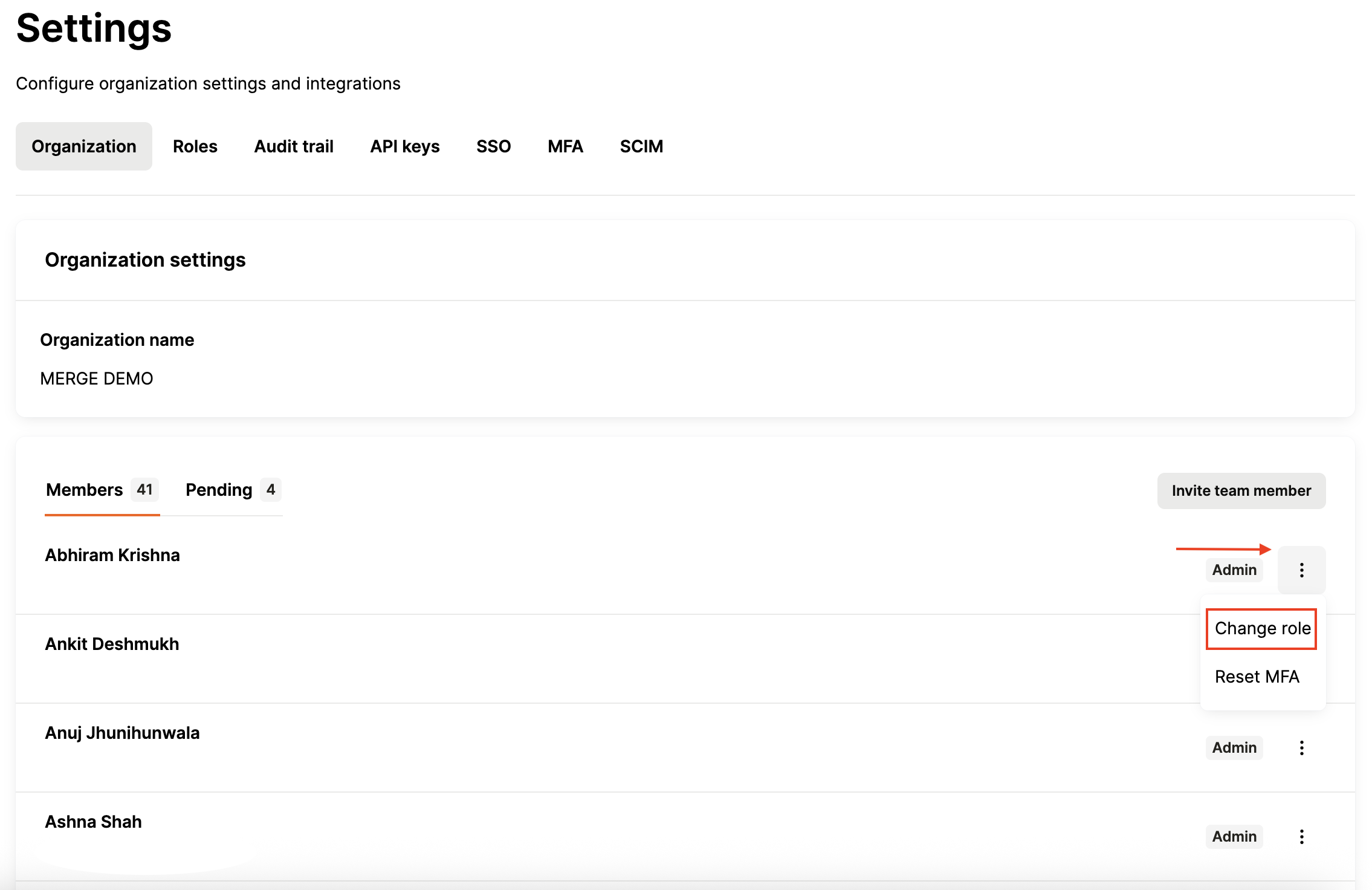
Select change role to open the dropdown menu of roles that you can add to the team member.
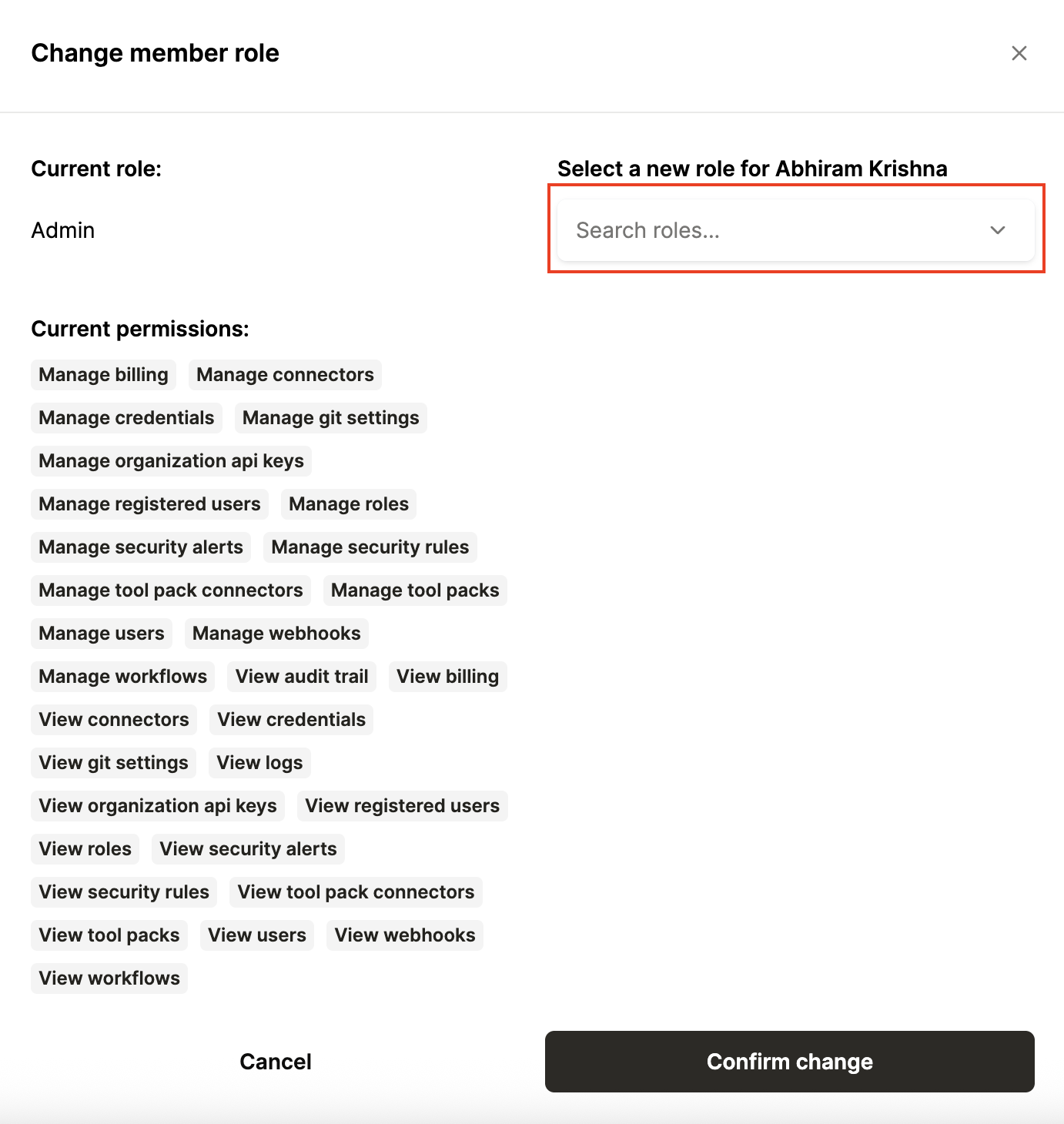
Creating Custom Roles
Custom roles are ideal for organizations that need fine-grained access control beyond the built-in role options.
To create a Custom Role for your team members, follow these steps:
Navigate to the bottom left corner of your screen and select Settings.
Go to the Roles section.
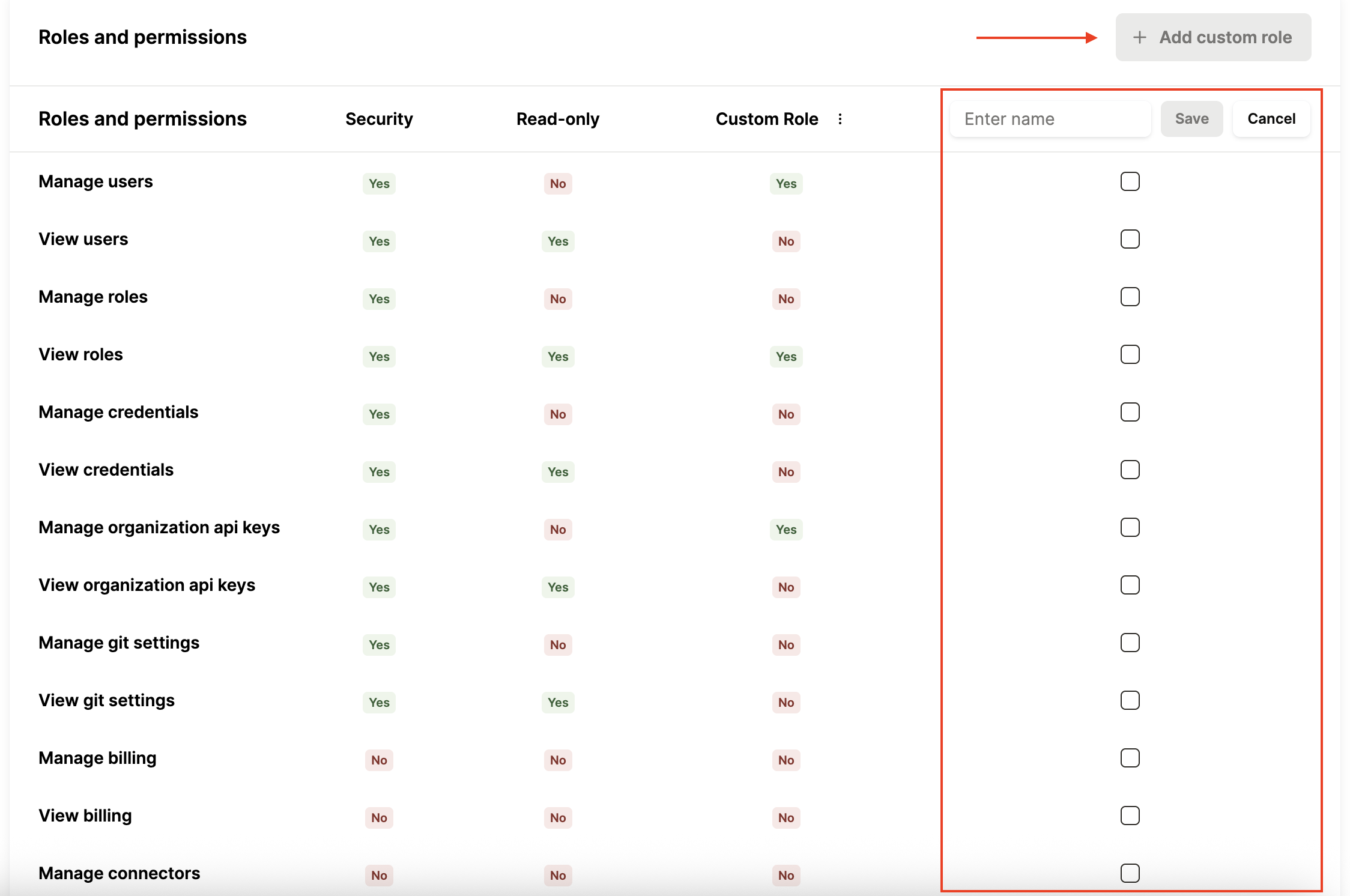
You will see a list of roles, and the ability to add a new one. Select Add Custom Role at the top right of the Roles section to create a new role.
Give the role a name and select permissions based on what you need for this role. You can set permissions to allow or deny access to specific features.
Once configured, click Save to create the role. It will now be available to assign to any team member.
Permissions Breakdown
Here is a breakdown of permissions available by default within Agent Handler:
Permission | Admin | Developer | Security | Read-only |
Manage users | Yes | No | Yes | No |
View users | Yes | Yes | Yes | Yes |
Manage roles | Yes | No | Yes | No |
View roles | Yes | Yes | Yes | Yes |
Manage credentials | Yes | No | Yes | No |
View credentials | Yes | Yes | Yes | Yes |
Manage organization API keys | Yes | No | Yes | No |
View organization API keys | Yes | Yes | Yes | Yes |
Manage git settings | Yes | Yes | Yes | No |
View git settings | Yes | Yes | Yes | Yes |
Manage billing | No | No | No | No |
View billing | No | No | No | Yes |
Manage connectors | Yes | Yes | No | No |
View connectors | Yes | Yes | Yes | Yes |
Manage tool packs | Yes | Yes | No | No |
View tool packs | Yes | Yes | Yes | Yes |
Manage registered users | Yes | No | Yes | No |
View registered users | Yes | Yes | Yes | Yes |
View logs | Yes | Yes | Yes | Yes |
View audit trail | Yes | Yes | Yes | Yes |
Manage webhooks | Yes | Yes | Yes | No |
View webhooks | Yes | Yes | Yes | Yes |
Manage workflows | Yes | Yes | Yes | No |
View workflows | Yes | Yes | Yes | Yes |