Workday - How do set up my partner credentials for OAuth?
Last updated: October 2, 2026
Overview
This guide will walk you through the steps to generate your client credentials within Workday and input them into the Merge Dashboard. Please note that generating your own client credentials is required for the Workday connector to work.
Prerequisites
Please ensure you fulfill all the requirements to set up the integration:
You have Administrator permissions in your company's Workday instance
Instructions
Step 1: Register a new API Client
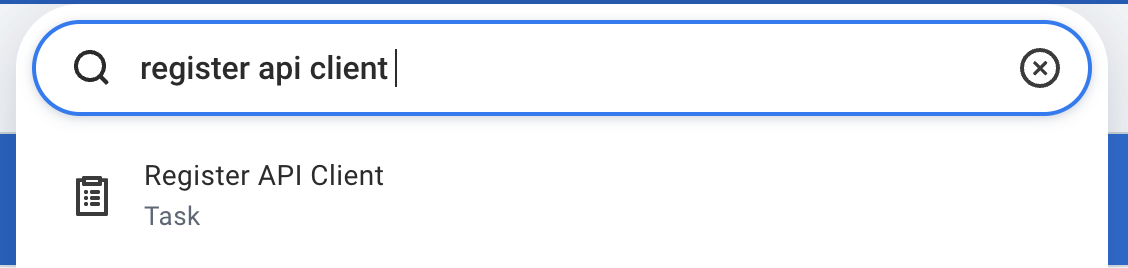
In the Search field, select the Task Register API Client.
On the Register API client page, in the Client Name field, enter the Client Name, select Authorization Code Grant for Client Grant Type.
Input
https://ah.merge.dev/oauth/callbackas the Redirection URI.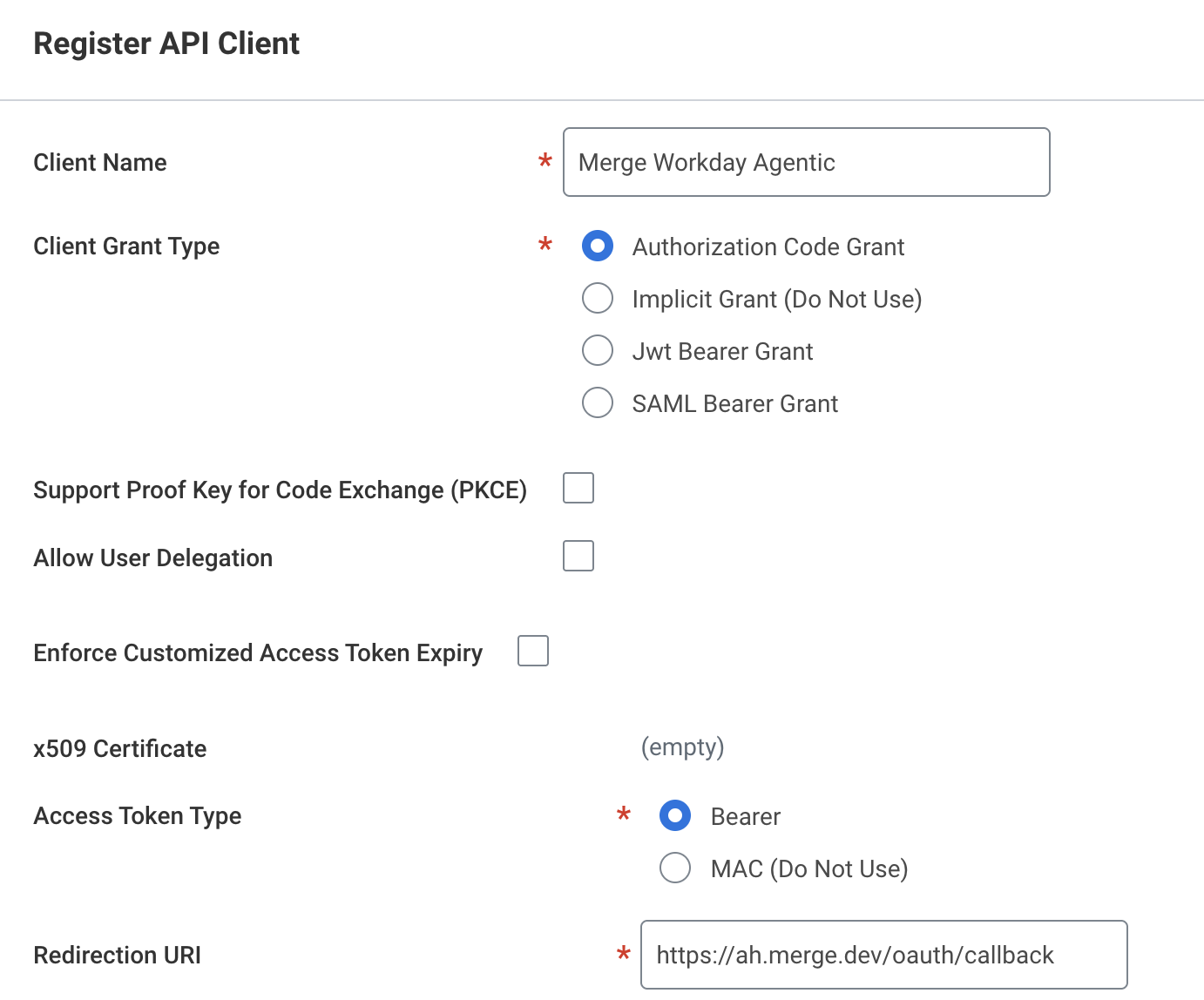
Add Scope (Functional Areas) values for your use case:
Scope | Required for |
Tenant Non-Configurable | All use cases |
Public Data | All use cases |
Staffing | Any employee data |
Organizations and Roles | Organizations and supervisory organizations |
Contact Information | Contact information, such as email and phone number |
Time Off and Leave | Time off or absence related data |
Time Tracking | Timesheet related data, such as time clock events |
Recruiting | Recruiting related data, such as prospects and interviews |
Core Payroll | Payroll related data, such as pay groups, pay slips |
Core Compensation | One-time payments, such as spot bonuses |
System | Access to WQL and custom objects |
Workday Designer | Custom object definitions |
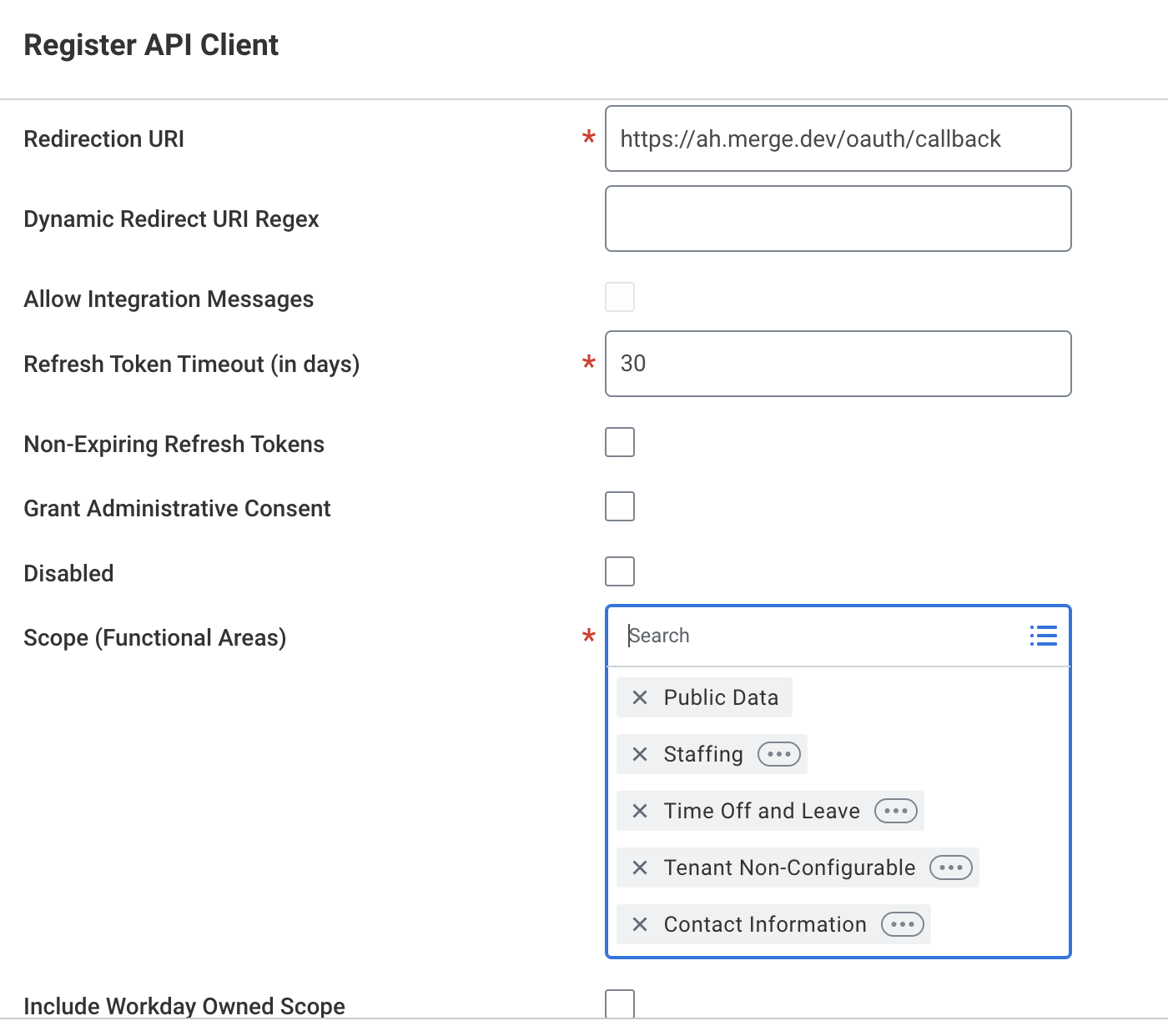
Ensure the Include Workday Owned Scope checkbox is checked.
Click Ok. Save the Client Secret and Client ID. Click Done.
Note: The person who connects Workday also needs access in their security groups. Payroll inputs need the Worker Data: Payroll Public API (Payroll Input) domain, and deleting time clock events needs the Process: Delete Time Clock Event REST API's domain enabled.
Step 2: Retrieve Workday tenant endpoints
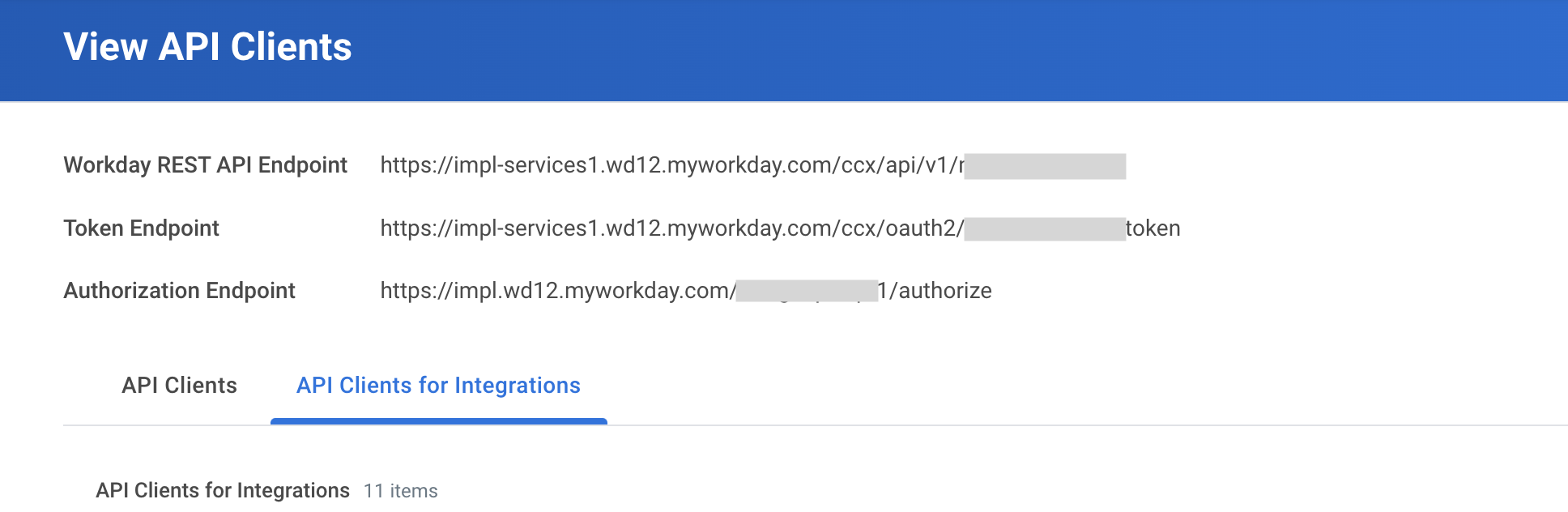
In the Search field, select View API Clients.
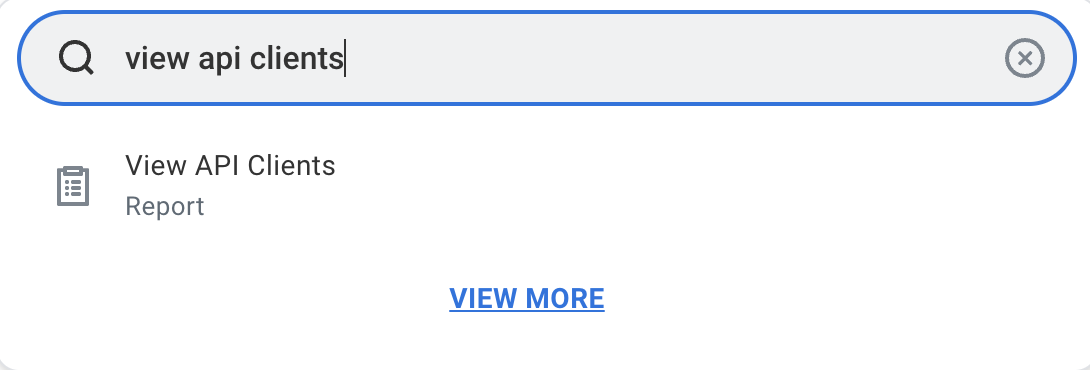
On the View API Clients page, save the Workday REST API Endpoint and the Authorization Endpoint. Tenant name is the Workday tenant identifier found in your Workday URL.
For example, if your URL is
https://impl.workday.com/acme_dpt1/d/home.htmld, the tenant isacme_dpt1. Save this as well.
Step 3: Enter credentials in Merge
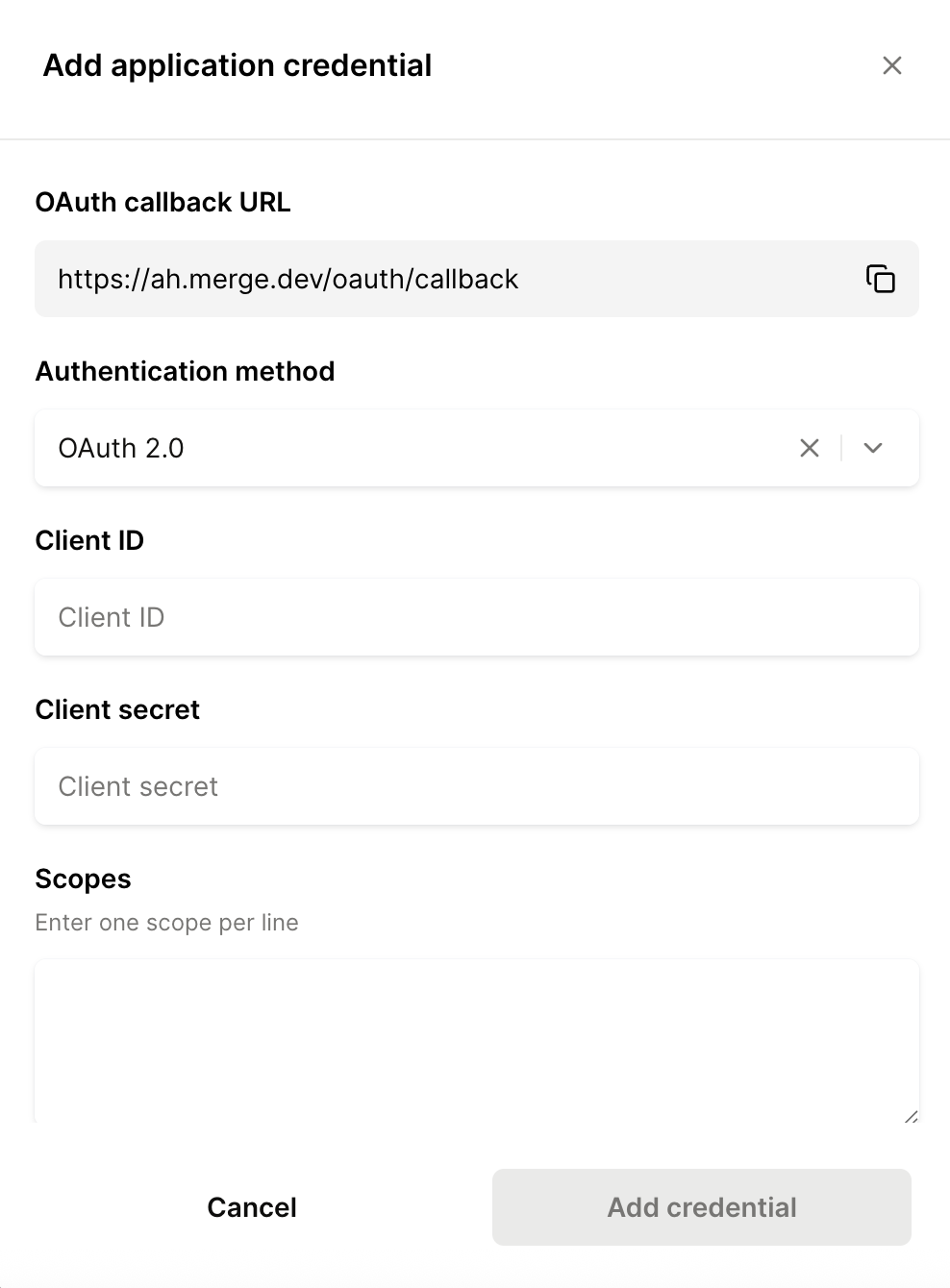
In the Connectors page, enter your OAuth credentials for Workday, and click the "+ Add connector" button.
If you face any issues during this process, please don't hesitate to reach out to us!