Microsoft Teams - How do I set up my partner credentials?
Last updated: April 14, 2026
Overview
To allow your customers to link Microsoft teams accounts with Merge, you will need to set up a Microsoft Developer App and enter your applications credentials in Merge. This is a 5 step process:
Step 1: Sign up for the Microsoft Developer Program (prerequisite)
If you do not have a Microsoft developer account, sign up for one here.
Complete the form using the instructions given below.
Fill out the first page with information about your organization, including the Region you are located in, your organization's name, and your language preference.
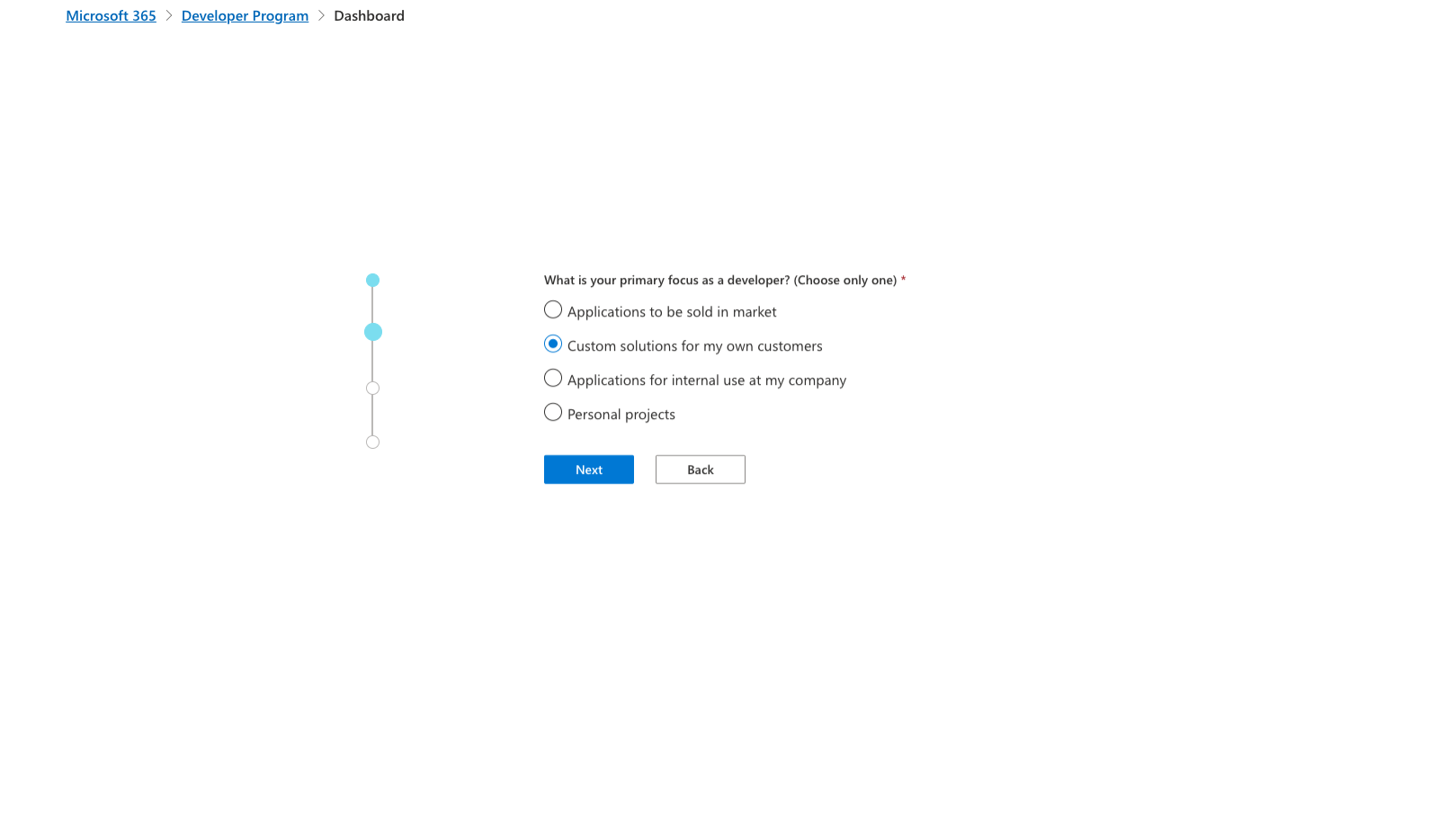
When prompted for your "primary focus as a developer", select "Custom solutions for my own customers".
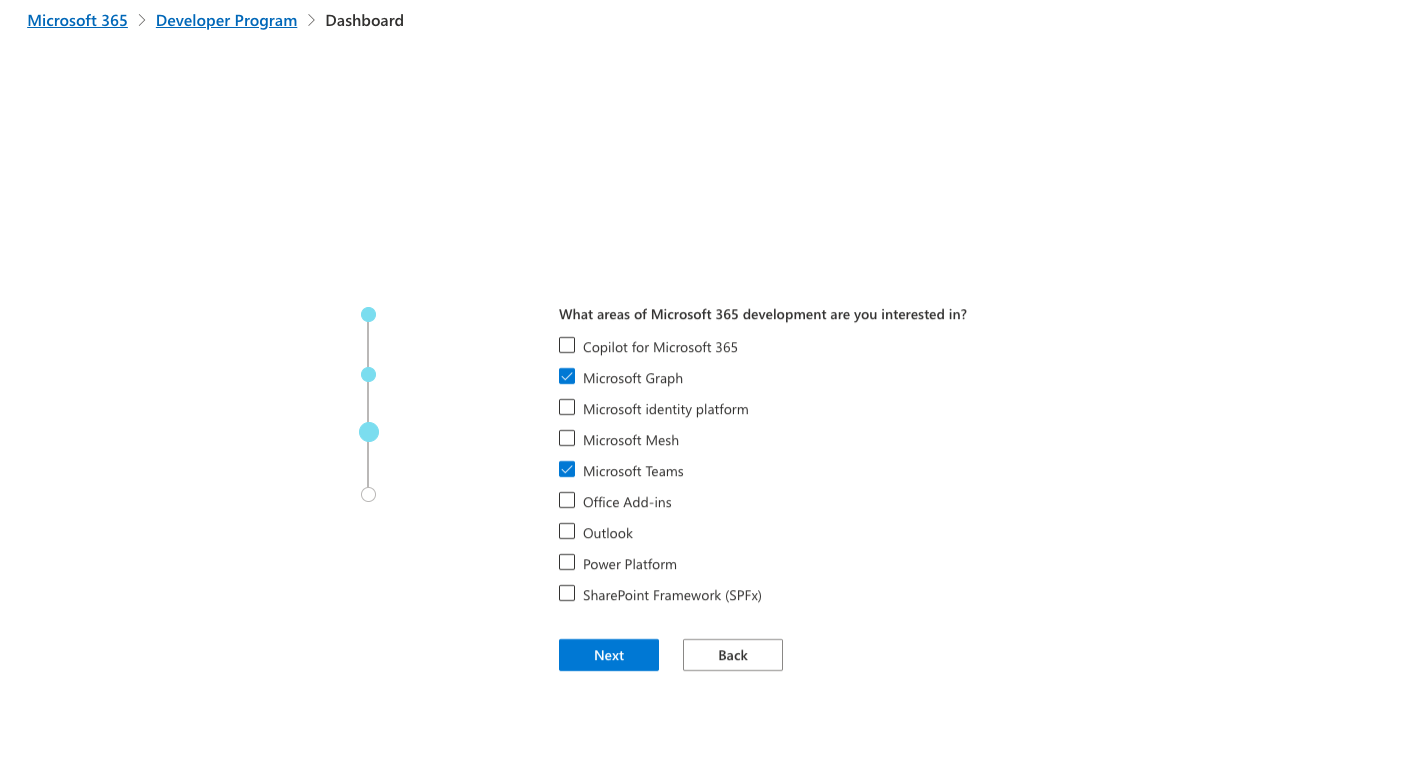
When prompted "what areas of Microsoft 365 development are you interested in?", be sure to select "Microsoft Teams" and "Microsoft Graph".
If you plan on offering connectors for other Microsoft tools, like Outlook, you can check those boxes as well.
Step 2: Create an OAuth application
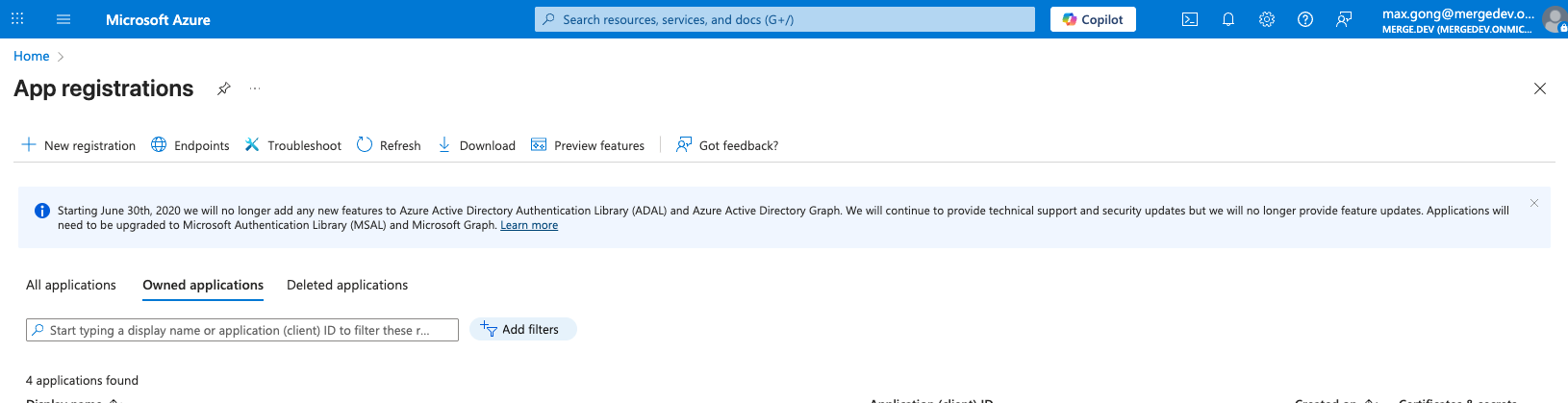
Navigate to the app registrations page.
Click "New Registration"
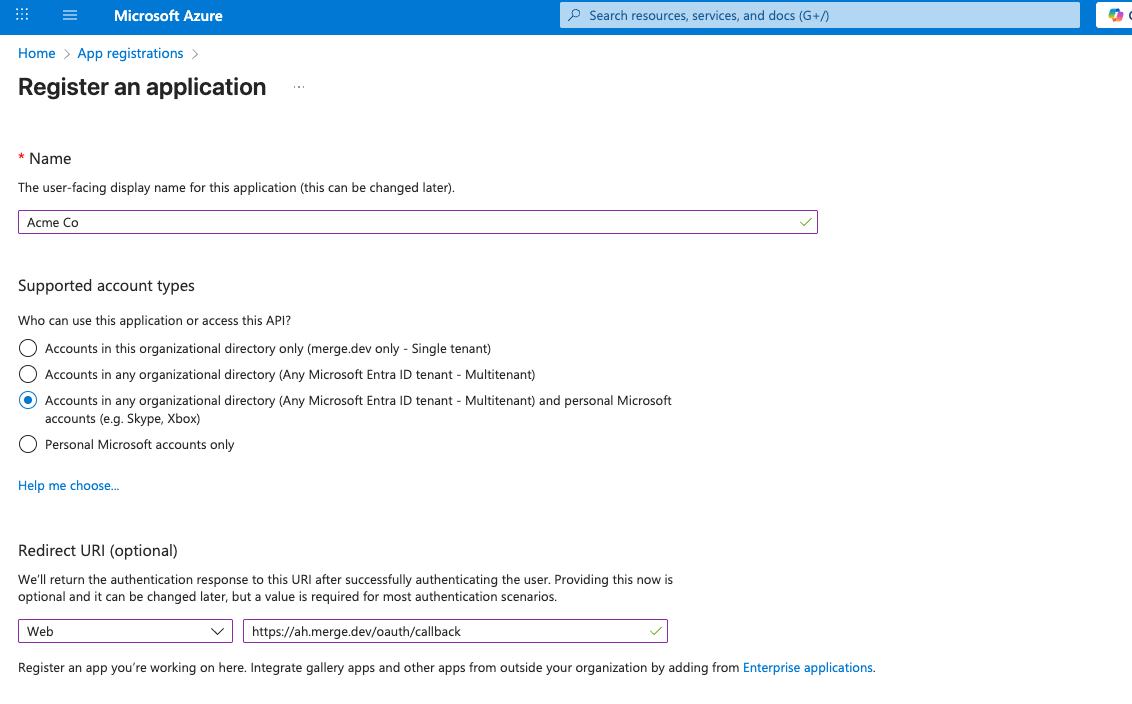
Complete the form following the steps below
Name: Fill the "name" field with your organization's name. This is the name that will appear in the OAuth flow during authentication.
Supported account types: Options 2 or 3 are both valid. Merge recommends option 3 if you plan to offer Agent Handler to individual users who will be connecting using their personal email address.
Accounts in any organizational directory
Accounts in any organizational directory and personal Microsoft accounts
Redirect URI: Web
Redirect URI: https://ah.merge.dev/oauth/callback
Click "Register" to save your app.
Step 3: Saving web application values in Merge
Clicking Register will take you to a new page with your OAuth app credentials.
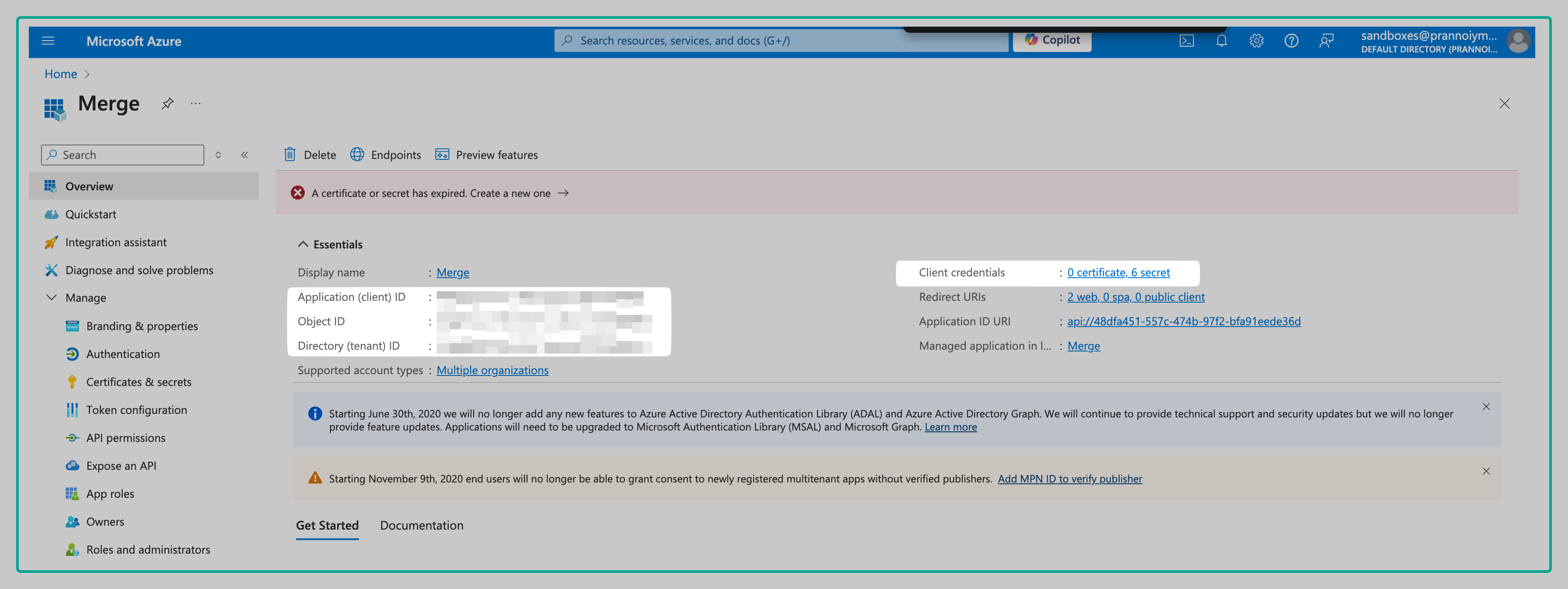
Paste the information below into your Agent Handler Instance.
Client Id - The Application ID shown in the screenshot above
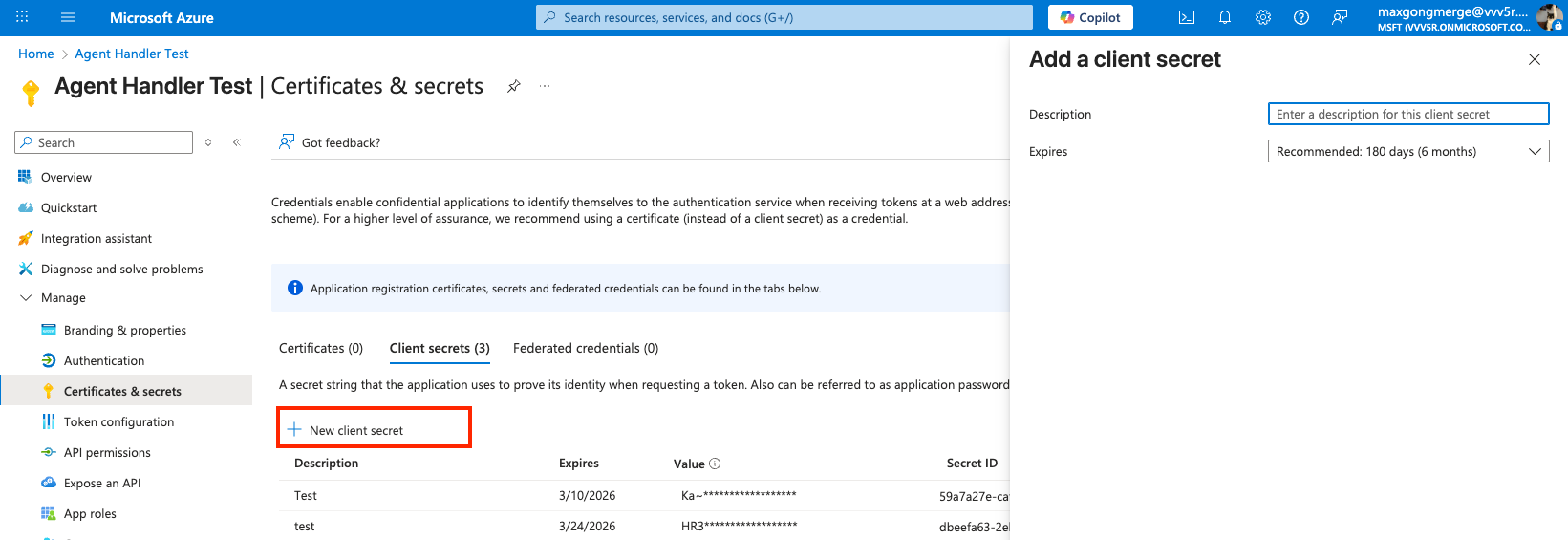
Client Secret - The "client credentials" link
Click the link, and hit "New client secret"
Enter a description (eg "Merge Agent Handler")
Leave the "expires" setting as the default value of "180 days (6 months)"
Input the credentials into Merge Agent Handler via the Connectors page, and clicking the "+ Add connector" button
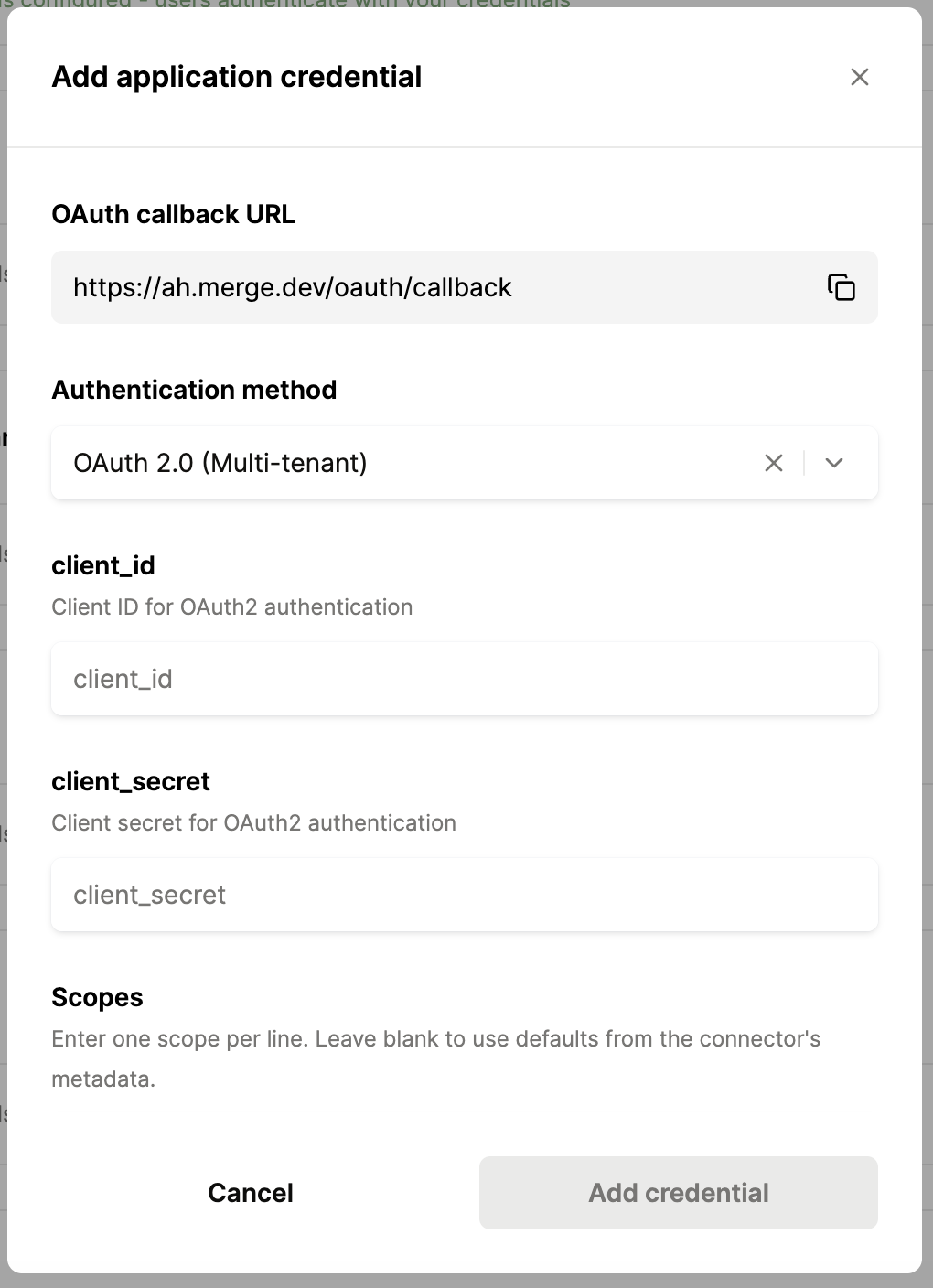
Step 4: Tenant support
Follow step A or B depending on your Agent Handler product strategy.
A: Single tenant
If you plan on only connecting to a single Microsoft Teams instance (ie your Agents are going to be used by internal users only), you are developing a "Single-tenant" OAuth app.
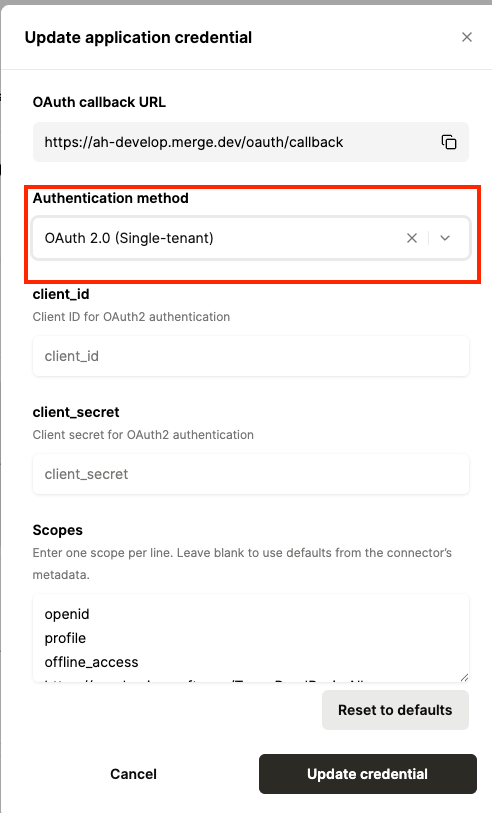
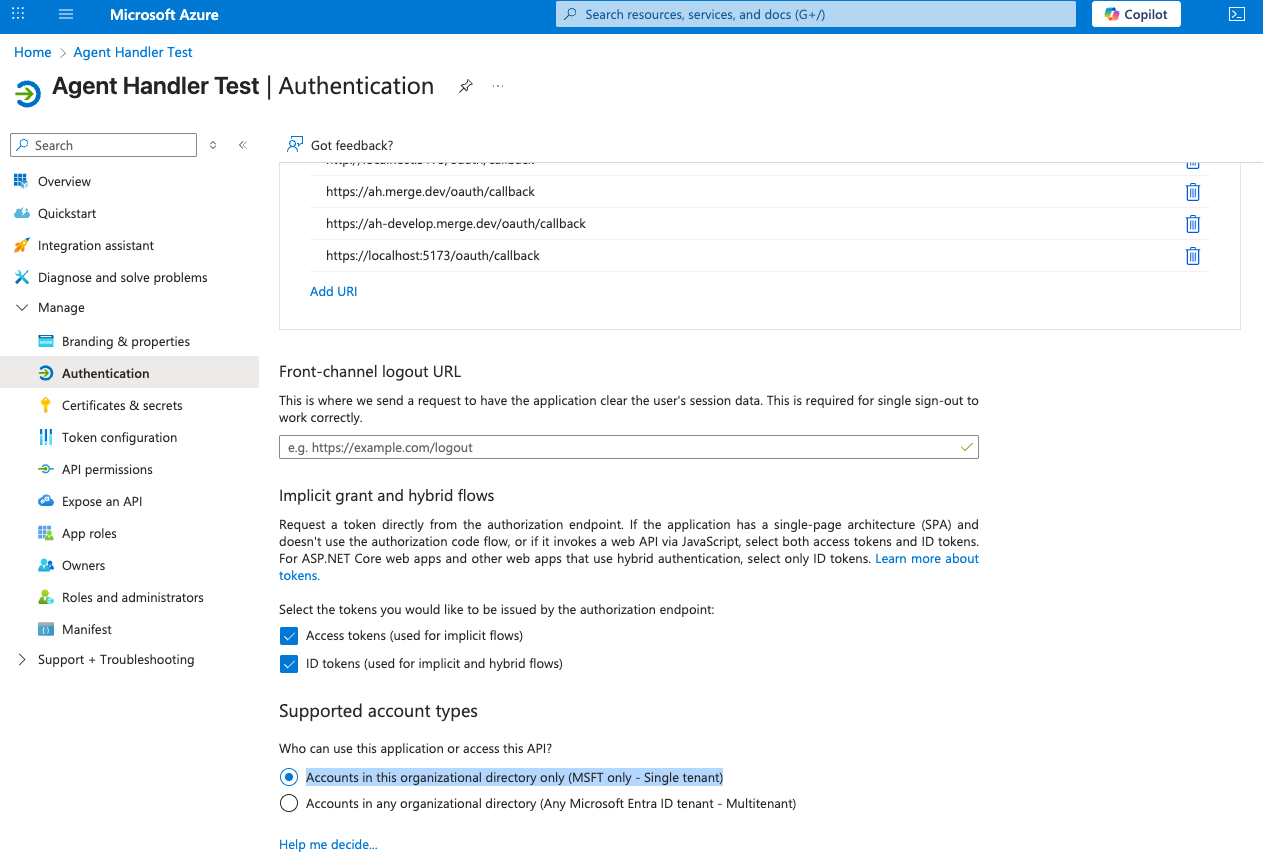
Navigate to the "Authentication" page in Microsoft, and select the "Accounts in this organizational directory only (MSFT only - Single tenant)" option.
B: Multi-tenant
If you plan on only connecting to multiple Microsoft Teams instances (ie your Agents are going to be used by multiple customers, each with their own teams instance), you are developing a "Multi-tenant" OAuth app.
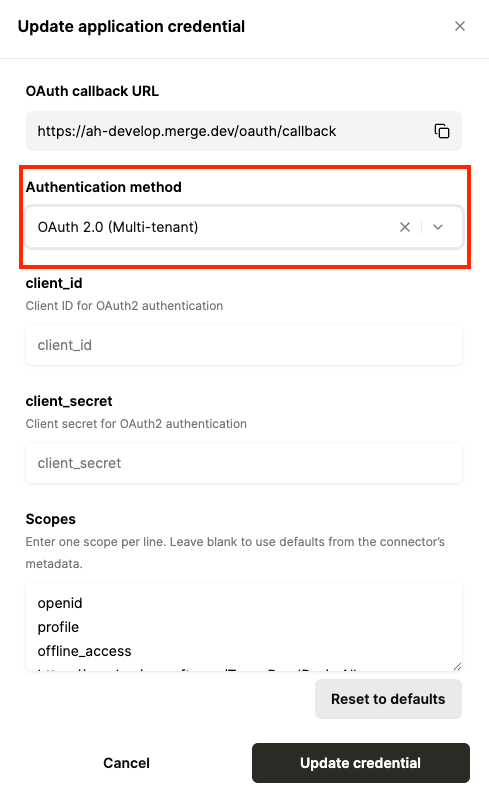
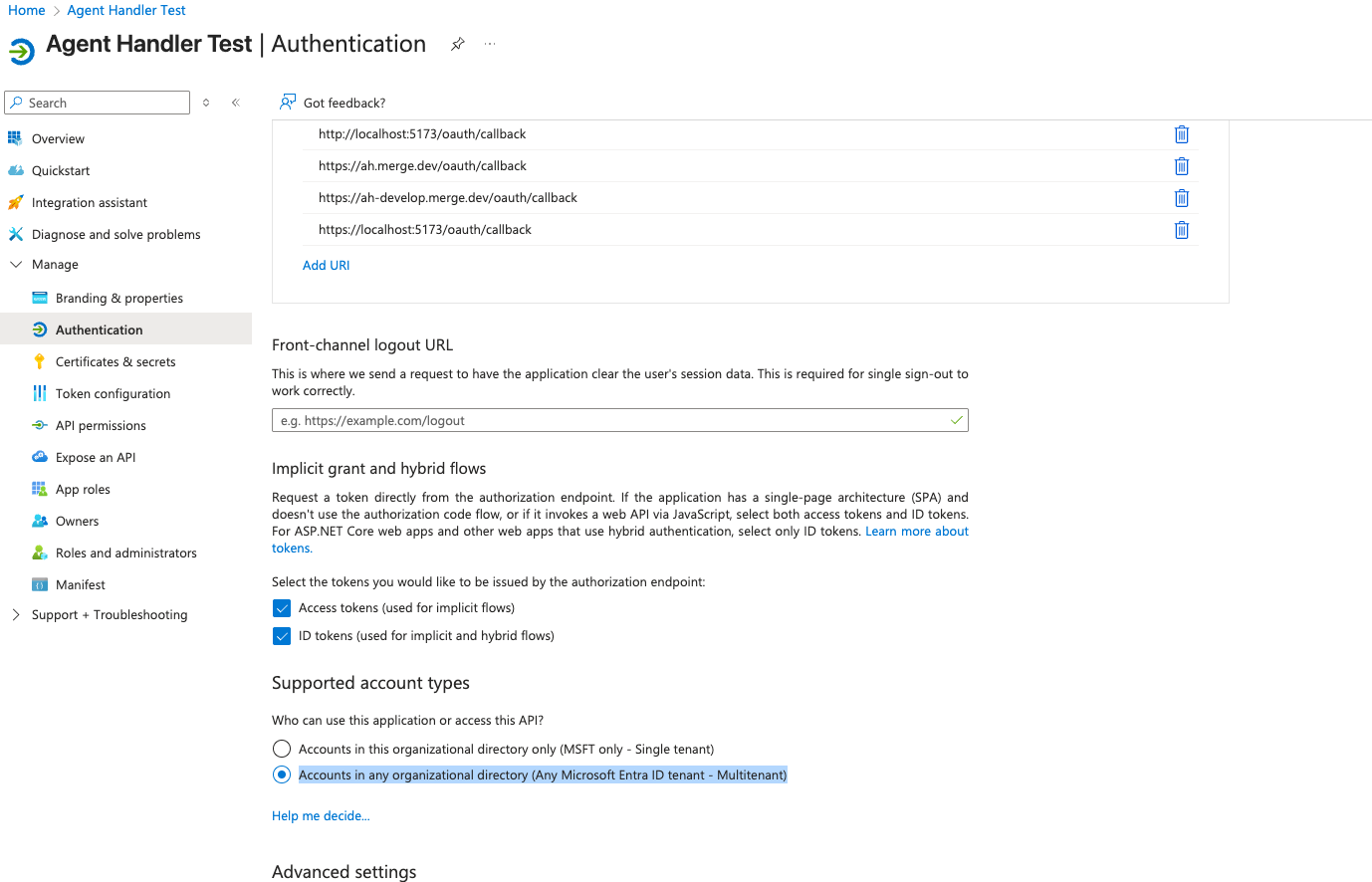
Navigate to the "Authentication" page in Microsoft, and select the "Accounts in any organizational directory (Any Microsoft Entra ID tenant - Multitenant)" option.
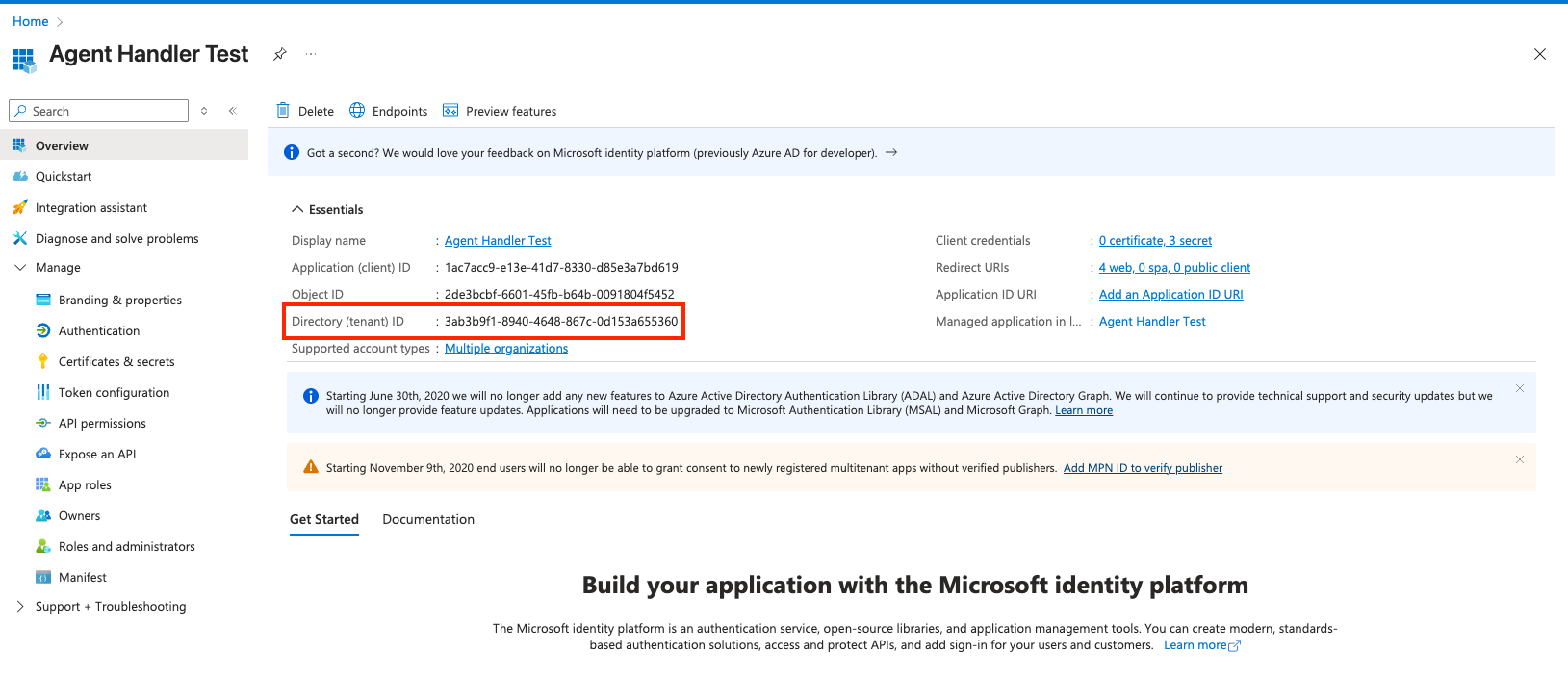
Additionally, copy your OAuth app tenant ID from the app overview page. You will need this during authentication.
Step 5: Permissions
Microsoft OAuth apps require that all scopes your agent will request are allowed by the app. To configure permissions for your app, navigate to "API Permissions"
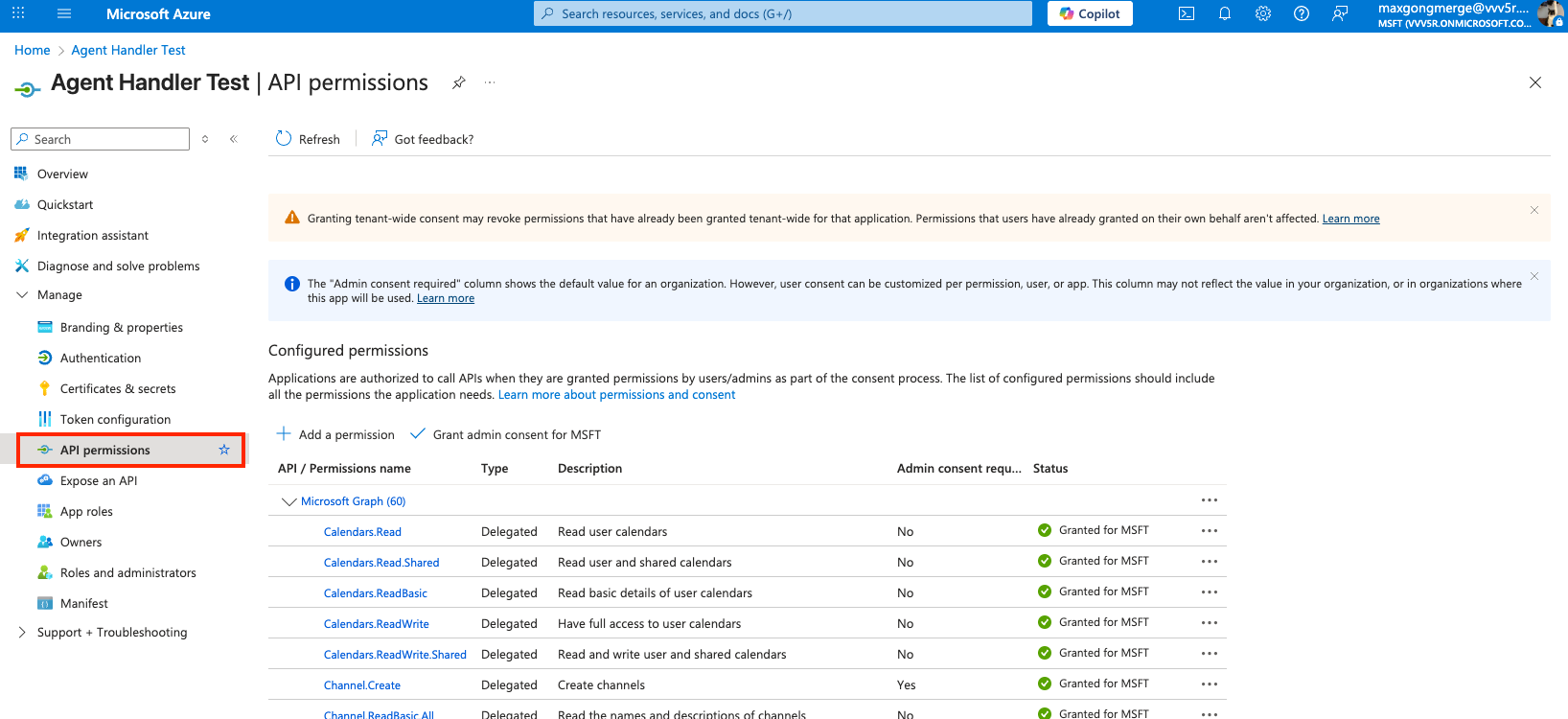
Required permissions
There are some permissions that are required for any tool call.
Required Microsoft Permission |
openid |
profile |
offline_access |
Permissions by tool
You will need different permissions based on the tools you plan to enable for your agents. The following table breaks down the permission required for each tool call.
Merge Tool | Required Microsoft Permission |
reply_to_message | Chat.ReadWrite |
get_message_replies | ChatMessage.Read |
check_channel_type | ChannelSettings.ReadWrite.All |
list_private_channels | ChannelSettings.ReadWrite.All |
list_channels | Channel.ReadBasic.All |
create_channel | Channel.Create |
get_channel_info | ChannelSettings.Read.All |
update_channel | ChannelSettings.ReadWrite.All |
delete_channel | ChannelSettings.ReadWrite.All |
list_team_files | Files.Read.All |
delete_team_file | Files.ReadWrite.All |
create_meeting | OnlineMeetings.ReadWrite |
list_meetings | OnlineMeetings.Read |
get_meeting_details | OnlineMeetings.Read |
update_meeting | OnlineMeetings.ReadWrite |
cancel_meeting | OnlineMeetings.ReadWrite |
list_team_members | TeamMember.Read.All |
add_team_member | TeamMember.ReadWrite.All |
get_team_member | TeamMember.Read.All |
update_team_member | TeamMember.ReadWrite.All |
remove_team_member | TeamMember.ReadWrite.All |
list_channel_messages | ChannelMessage.Read.All |
send_channel_message | ChannelMessage.ReadWrite |
get_channel_message | ChannelMessage.Read.All |
update_channel_message | ChannelMessage.ReadWrite |
search_teams | Team.ReadBasic.All |
get_team_primary_channel | Channel.ReadBasic.All |
list_channel_members | ChannelMember.Read.All |
add_channel_member | ChannelMember.ReadWrite.All |
remove_channel_member | ChannelMember.ReadWrite.All |
list_teams | TeamSettings.Read.All |
create_team | Team.Create |
get_team_info | TeamSettings.Read.All |
update_team | TeamMember.ReadWriteNonOwnerRole.All |
search_users | User.ReadBasic.All |
get_user_presence | Presence.Read.All |
send_chat_message | Chat.ReadWrite |
add_message_reaction | Chat.ReadWrite |
search_messages | ChatMessage.Read |
get_user_info | User.ReadBasic.All |
check_user_availability | Presence.Read.All |