How to enable Agent Handler and Merge for Workforce in Claude
Last updated: November 10, 2026
Overview
This article explains how a Claude admin adds Agent Handler as a custom connector, and how employees then connect to it. It applies to Agent Handler for Employees and Merge for Workforce on Claude Team and Enterprise plans.
Prerequisites
A Claude Team or Enterprise plan.
A Claude role that can add custom connectors: an Owner or Primary Owner, or, on Enterprise plans, a custom role with Manage access to Libraries.
A permitted admin role in Agent Handler or Merge for Workforce.
Add the connector as a Claude admin
Go to Organization settings > Connectors.
Click Add, hover over Custom, and select Web.
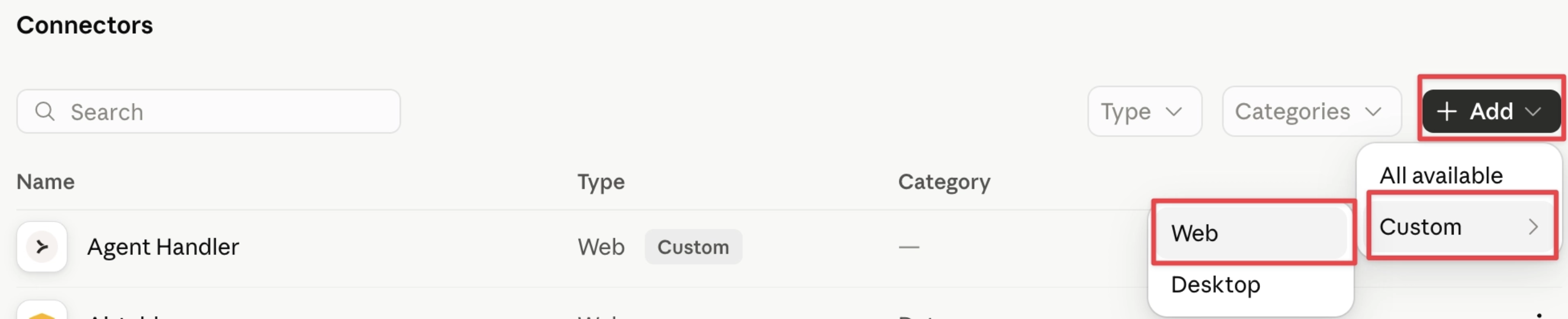
Enter
Agent Handleras the connector name.Paste the remote MCP server URL for your product, then click Continue:
Agent Handler for Employees:
https://ah-api.merge.dev/mcpMerge for Workforce:
https://wf-api.merge.dev/mcp
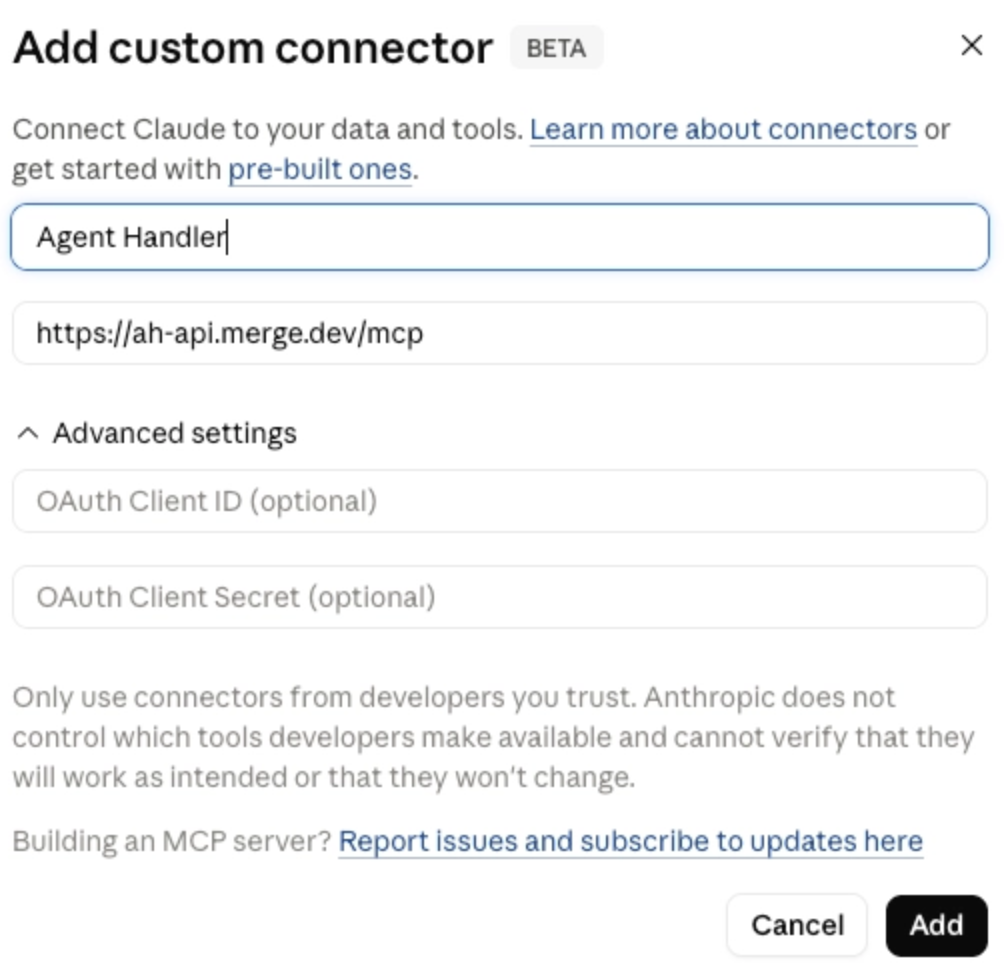
Review the detected authentication settings, click Continue, and then click Add.
Connect as an employee
Go to Connectors in Claude.
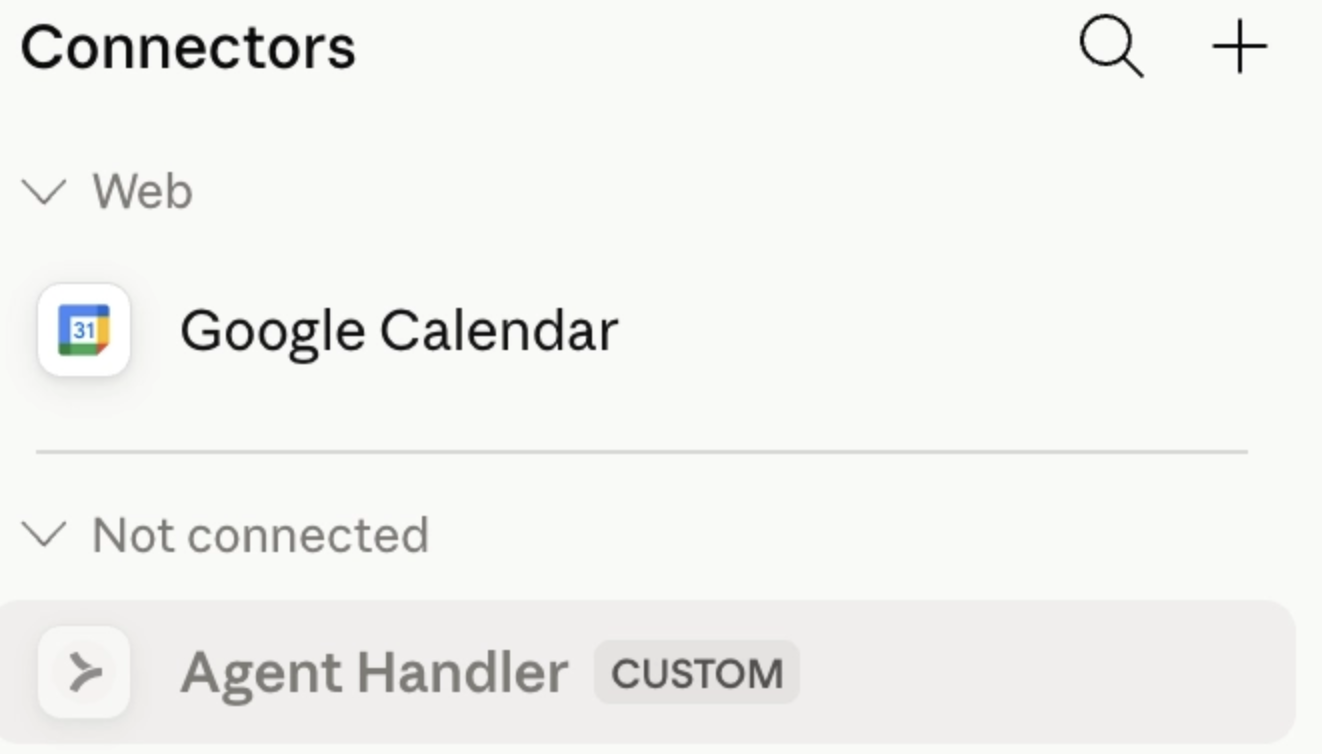
Find the Agent Handler connector and click Connect.
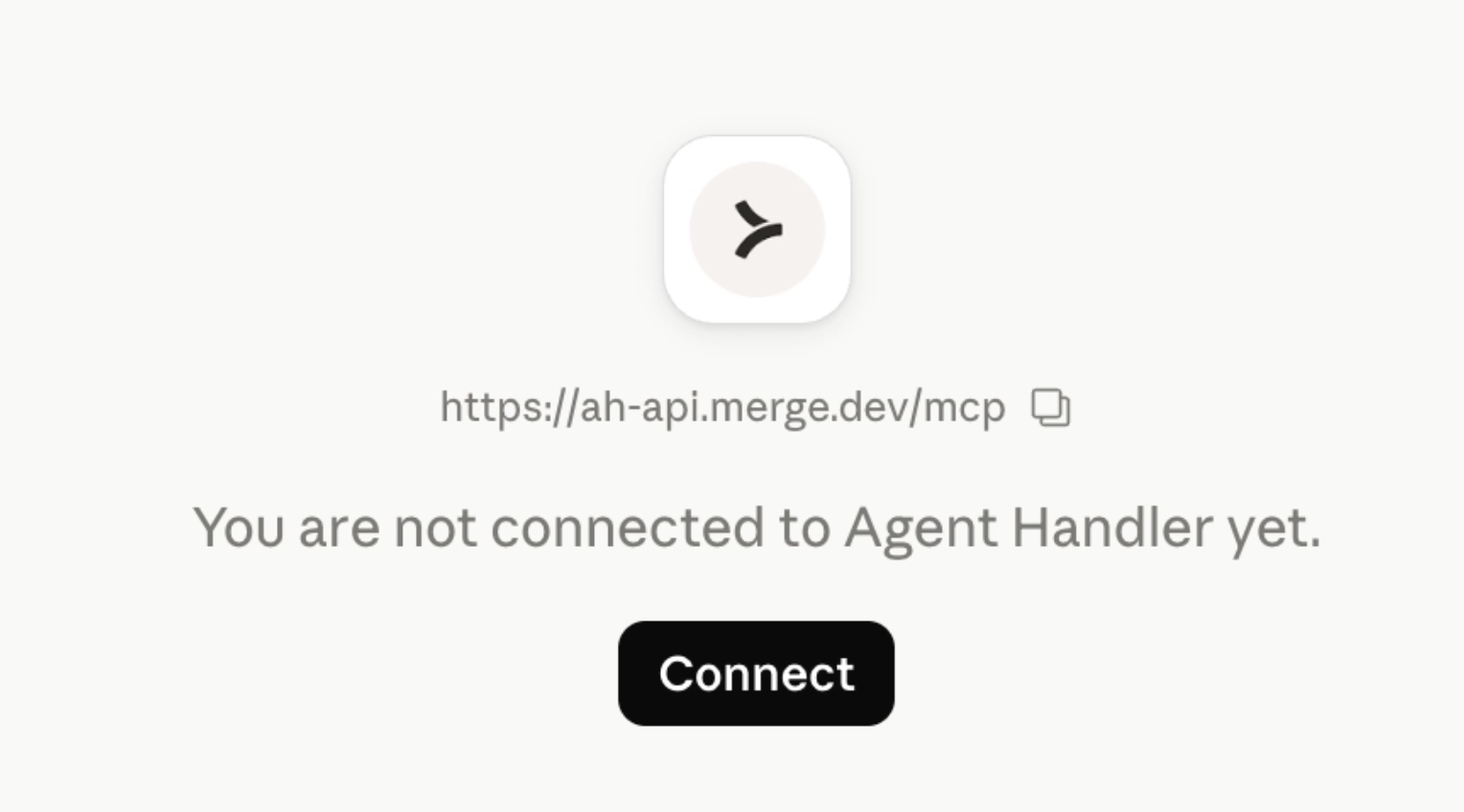
Sign in through SSO and complete your identity provider steps.
Review the tools your Group has been granted on the consent screen.
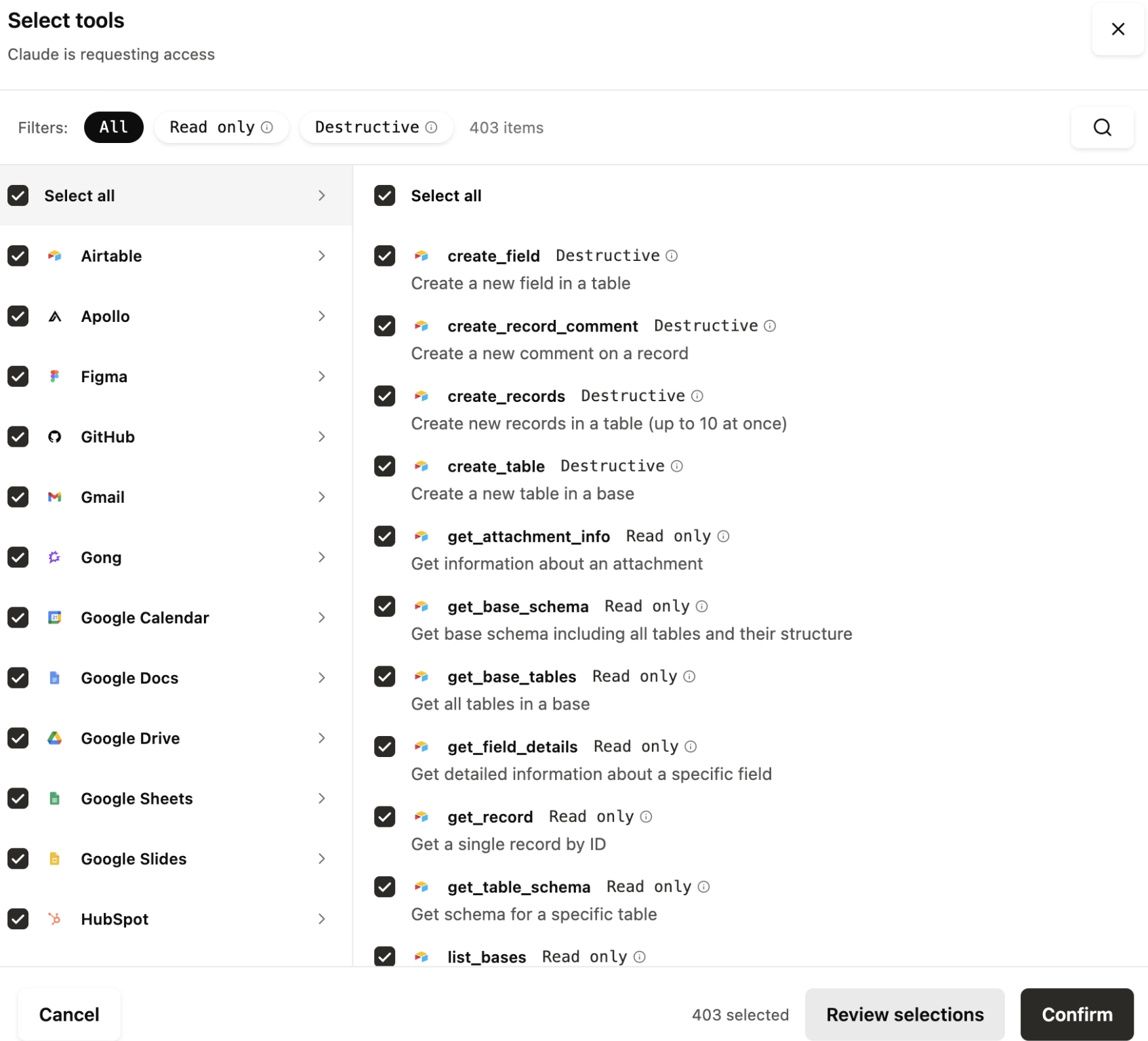
Click Confirm.
Final steps
You can now use your Agent Handler tools in Claude.
Questions
If you need help, contact support@merge.dev or your CSM.