Salesforce - How do I set up my partner credentials for OAuth?
Last updated: April 15, 2026
Overview
This guide will walk you through how to create a Connected App in Salesforce and enter your OAuth credentials in Merge.
Instructions
Step 1: Create a Connected App in Salesforce
Log into Salesforce. Click the Gear Icon, and then click Setup from the drop down menu.

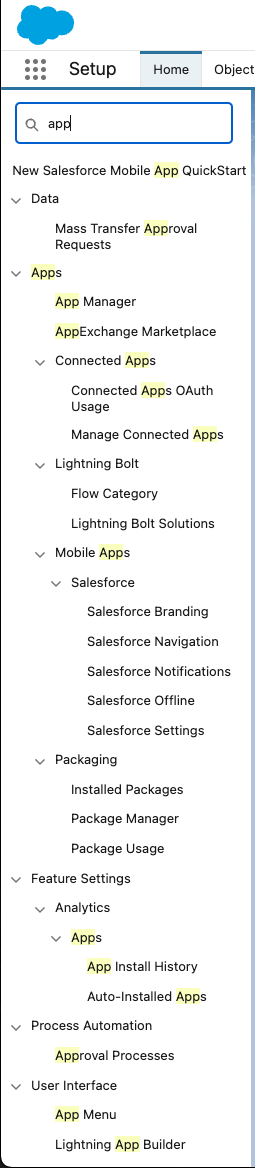
Using the Quick Find Search box, search and select App Manager.
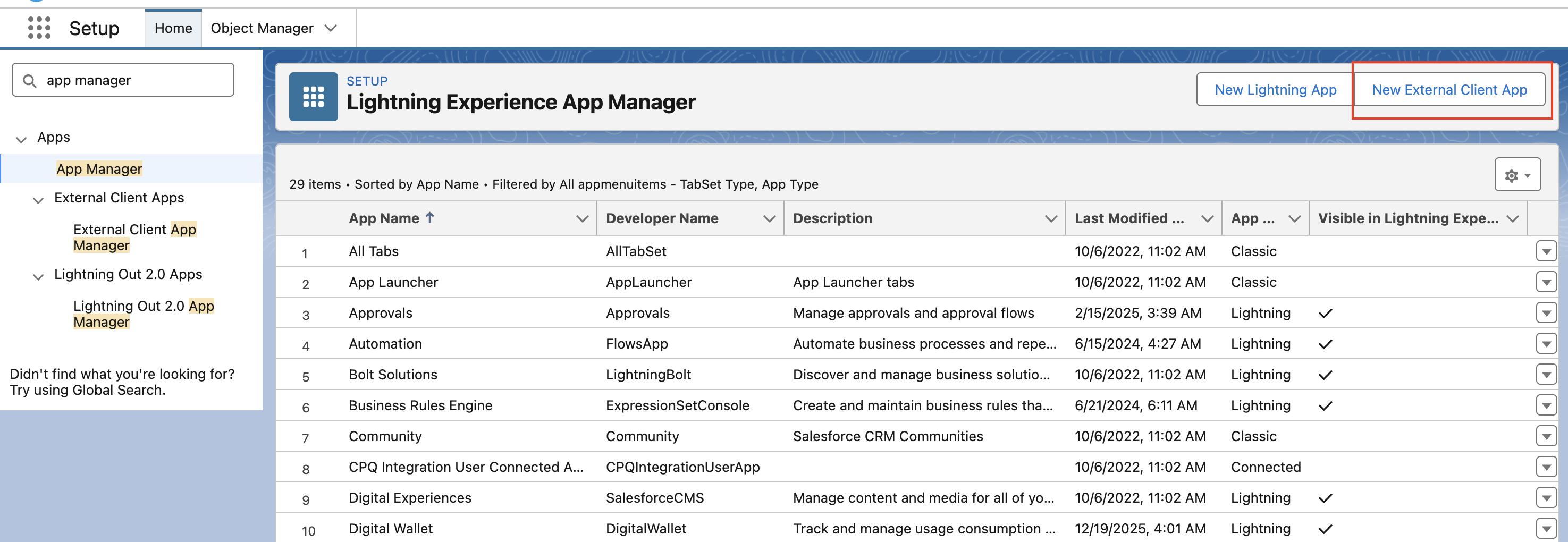
Click New External Client App
Enter a name for the App. Please note that it must be a unique name within your Organization.
Step 2: Enable OAuth settings
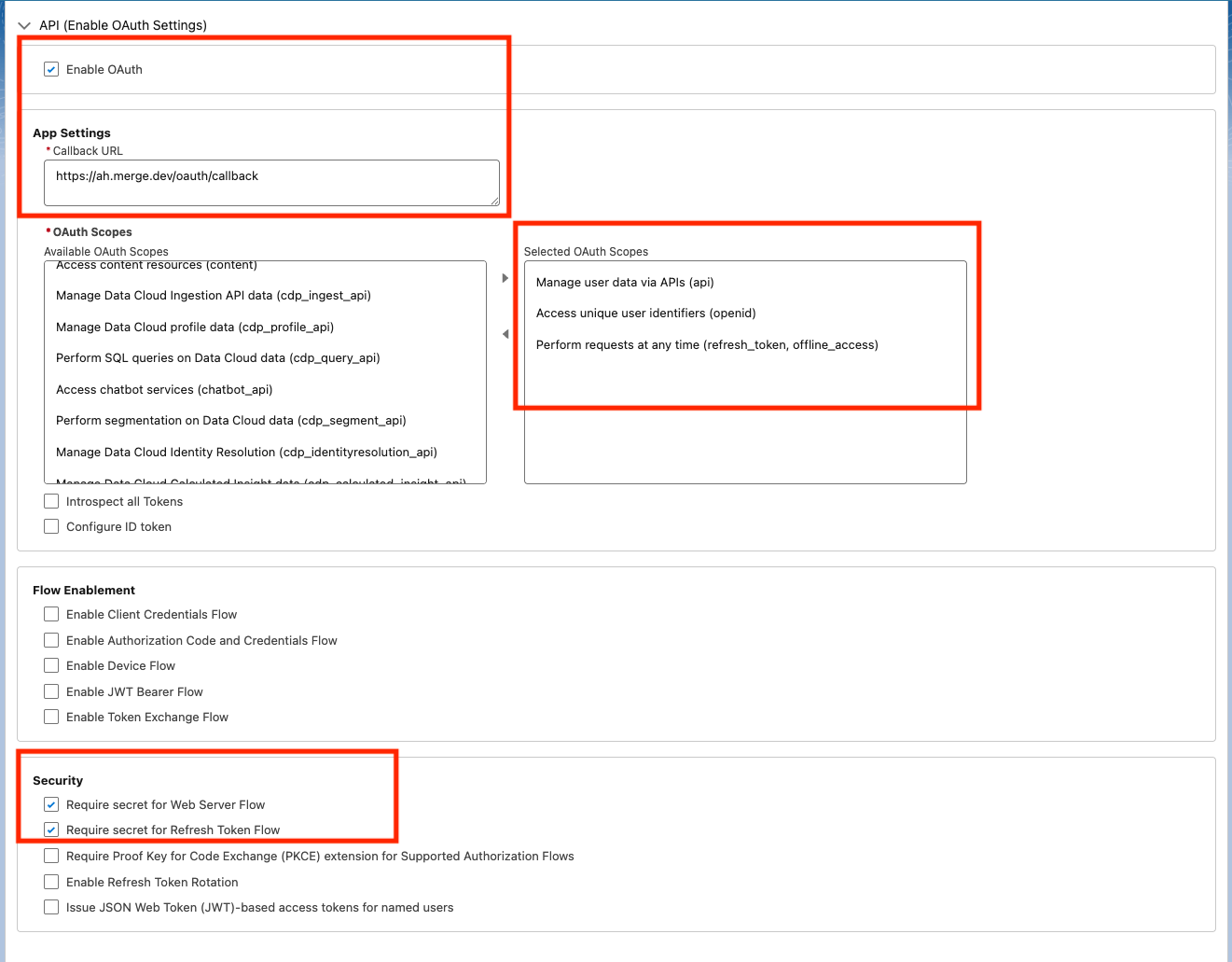
In the API (Enable OAuth Settings) area of the page, select Enable OAuth.
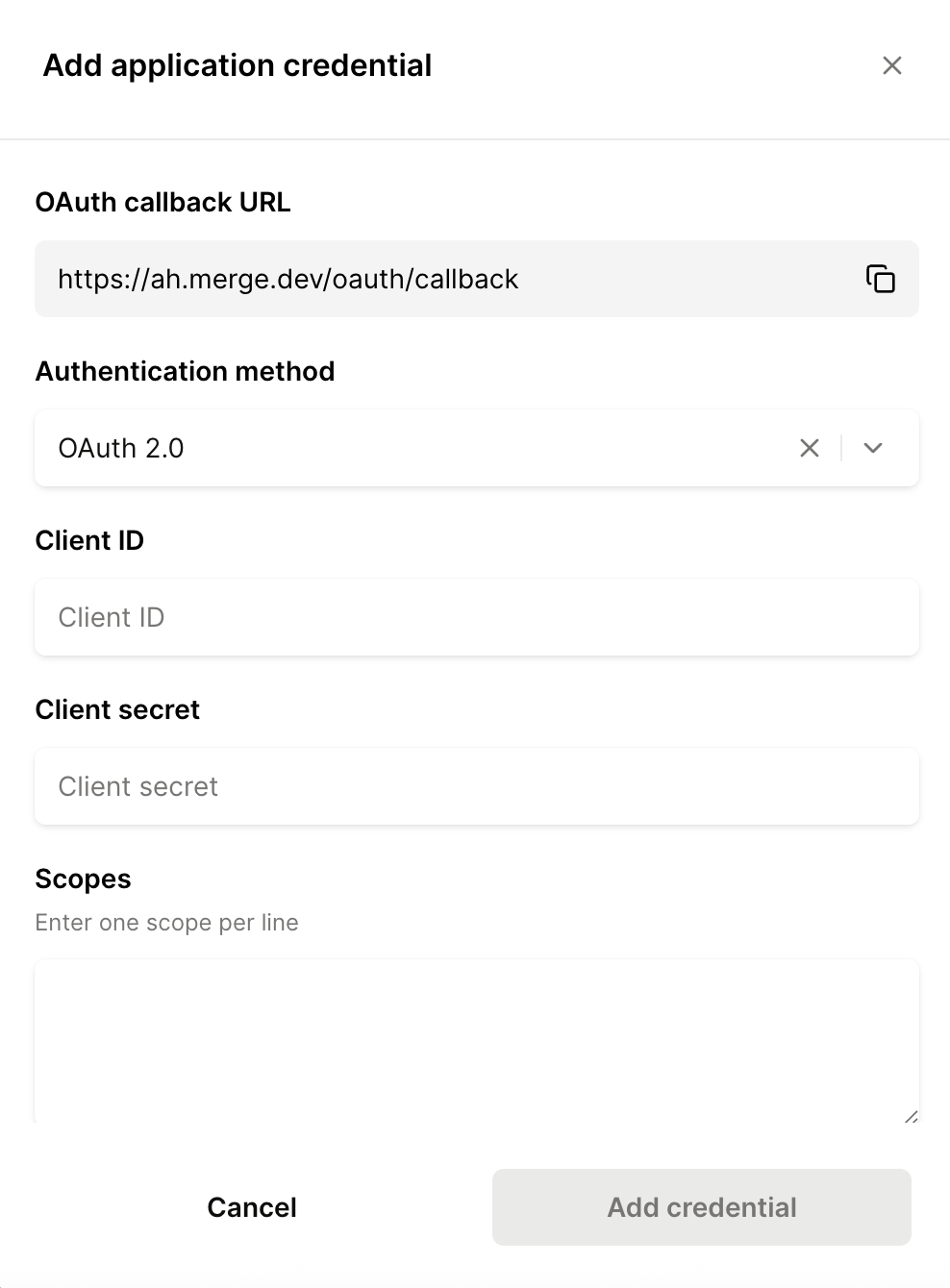
Set Callback URL to
https://ah.merge.dev/oauth/callbackComplete the following fields:
Check the Enable OAuth Settings box
Check the Require Secret for Web Server Flow box
Check the Require Secret Refresh Token Flow box
Add the three Scopes below to the Selected OAuth Scopes box
Access unique user identifiers (openid)
Manage user data via APIs (api)
Perform requests at any time (refresh_token, offline_access)
Note: Salesforce does not have granular scopes. Permissions are derived based on the authenticated user. The below above permissions must be added to access the API
Save the app. Back on the External Client App Manager screen, find and select the app you just created.

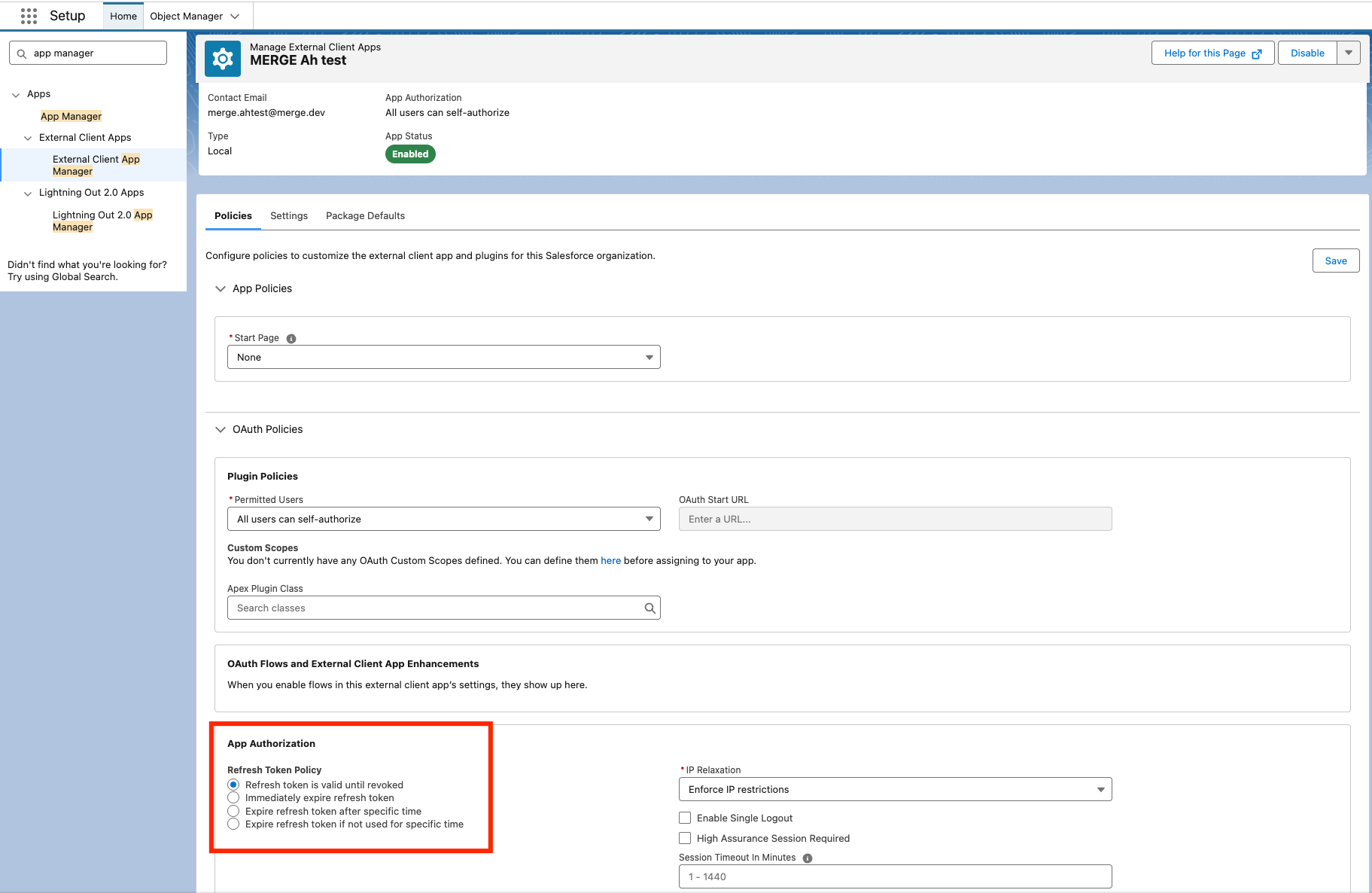
Within the Policies tab, click into OAuth Policies. In the App Authorization section, ensure that you select Refresh token is valid until revoked.
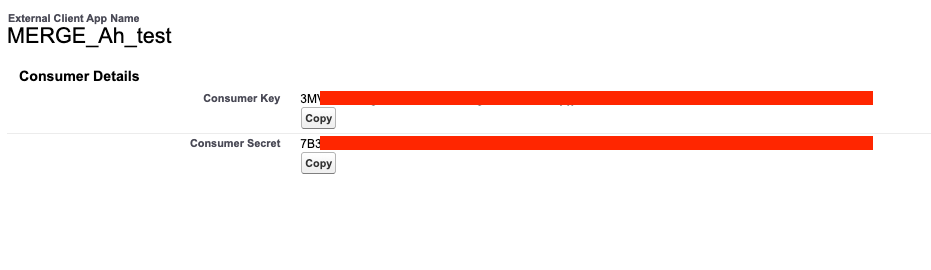
Next, navigate to the Settings tab, expand the OAuth Settings menu, and select Consume Key and Secret.
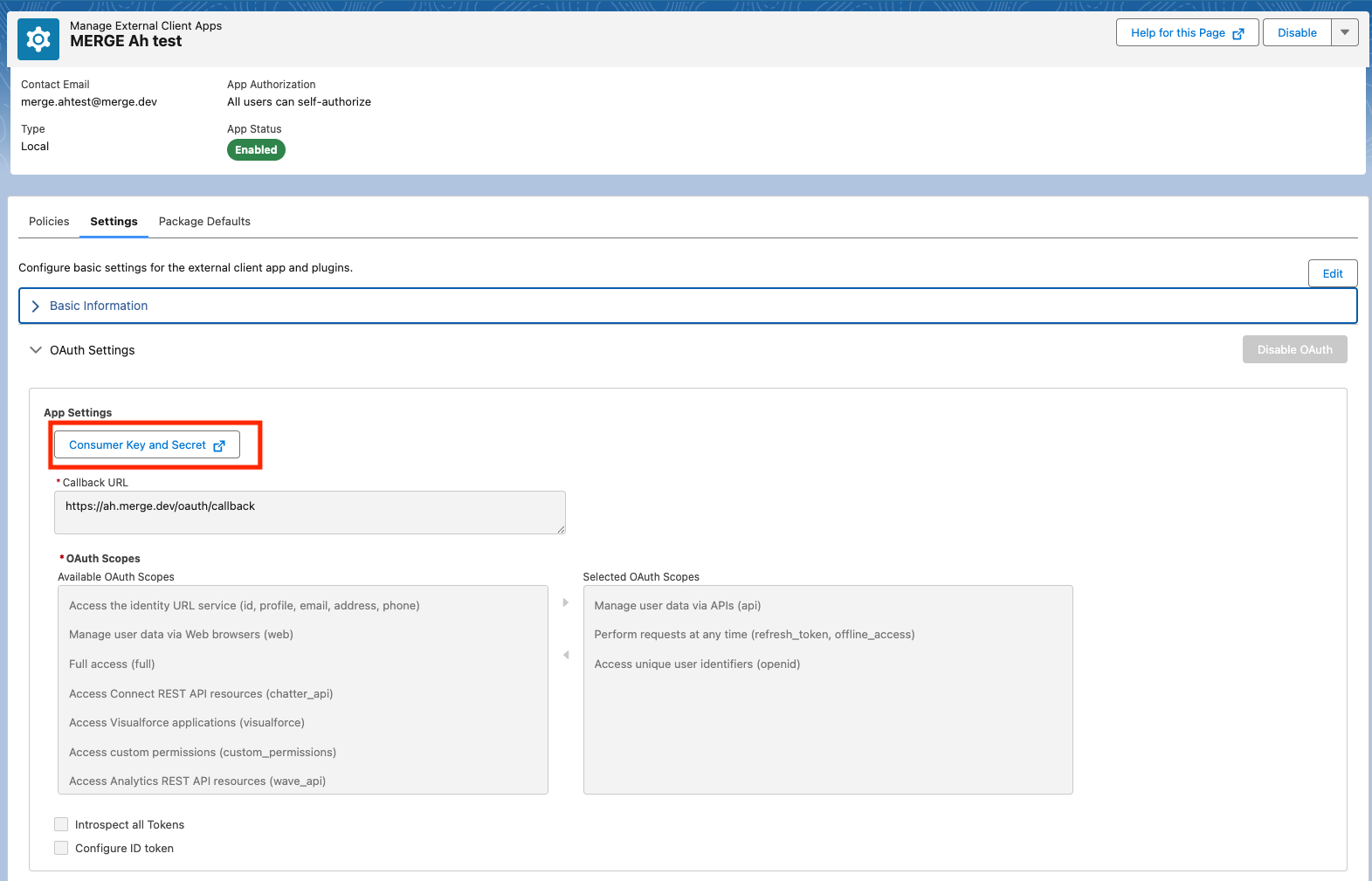
Copy the following values and enter them in the Merge Dashboard
OAuth Client ID
OAuth Client Secret