Pipedrive - How do I set up my partner credentials for OAuth?
Last updated: April 6, 2026
Overview
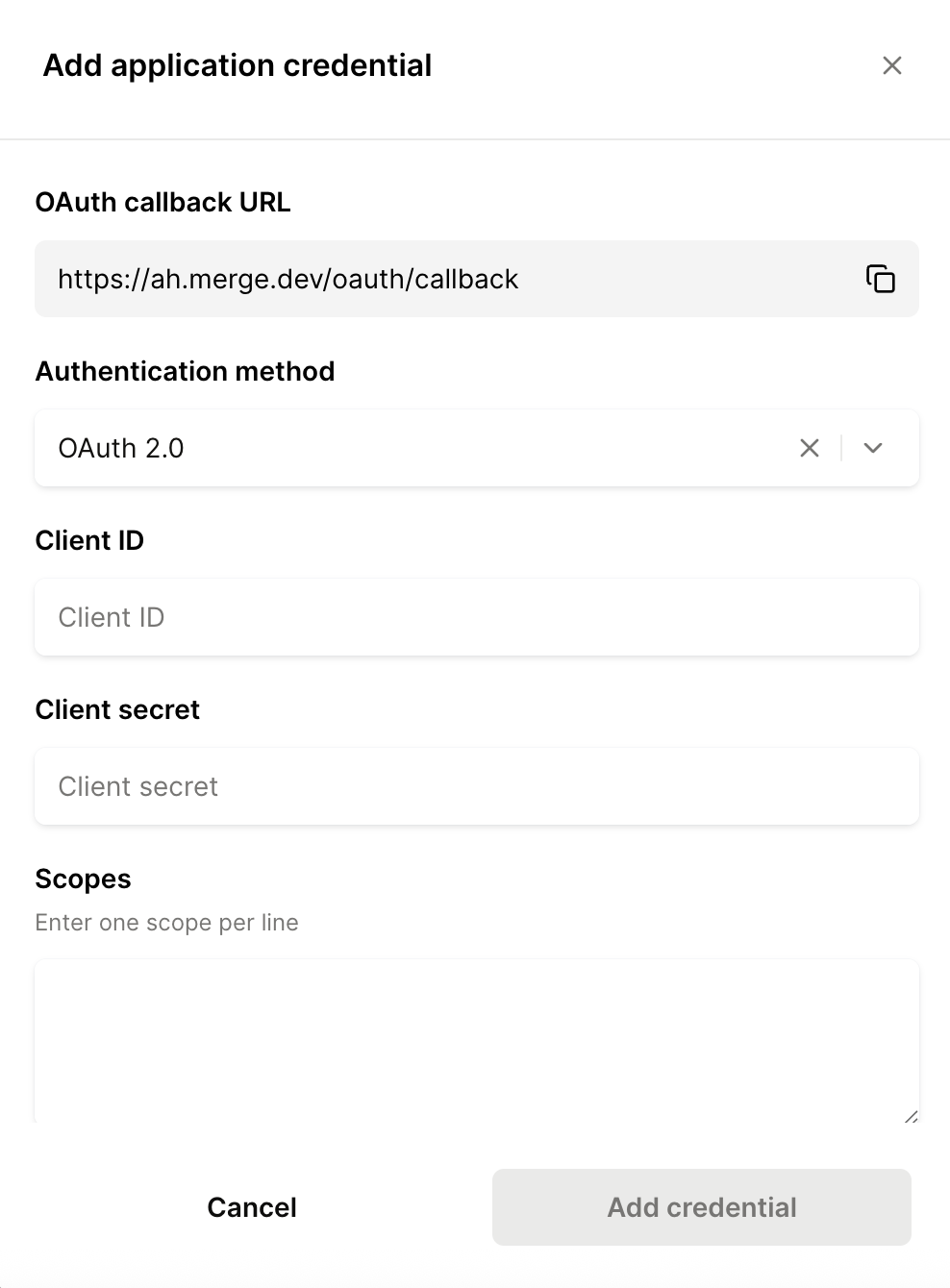
This guide will walk you through how to create a Private App in Pipedrive and enter your OAuth credentials in Merge.
Instructions
Step 1: Create a Private App in Pipedrive
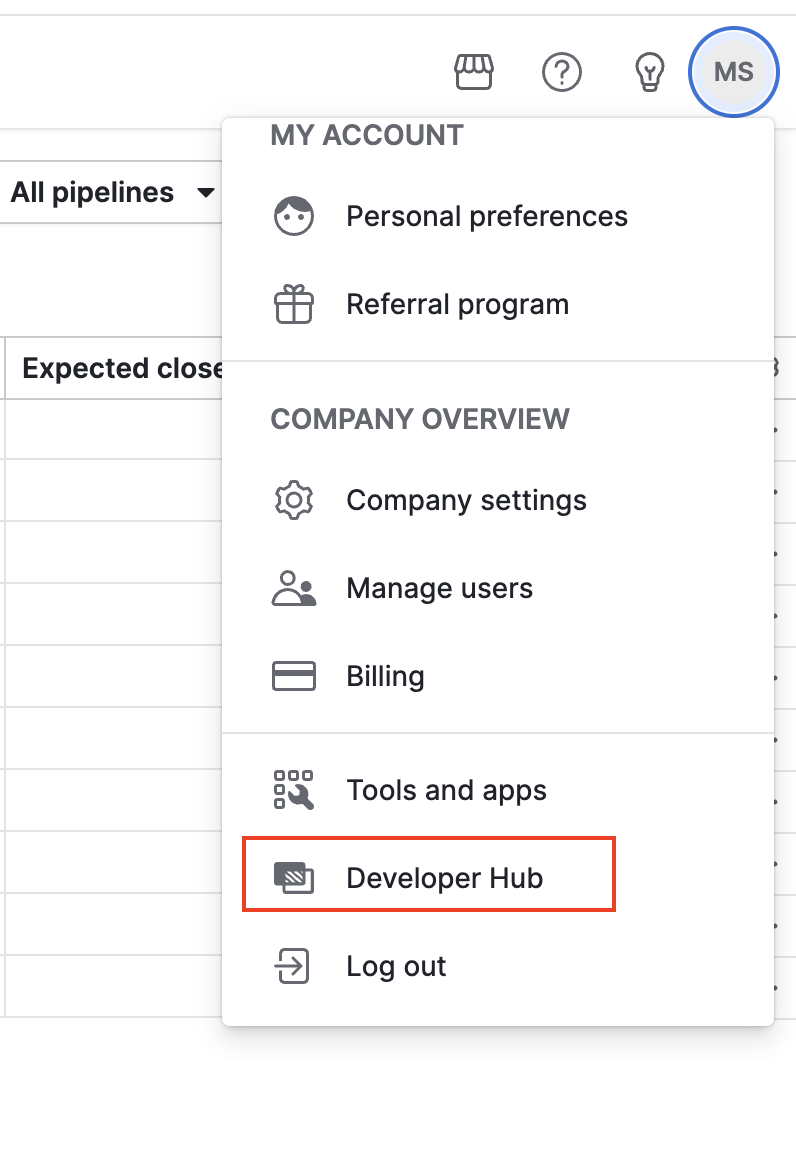
Log into Pipedrive. Click the Account Icon in the top right corner, and then click Developer Hub from the drop down menu.
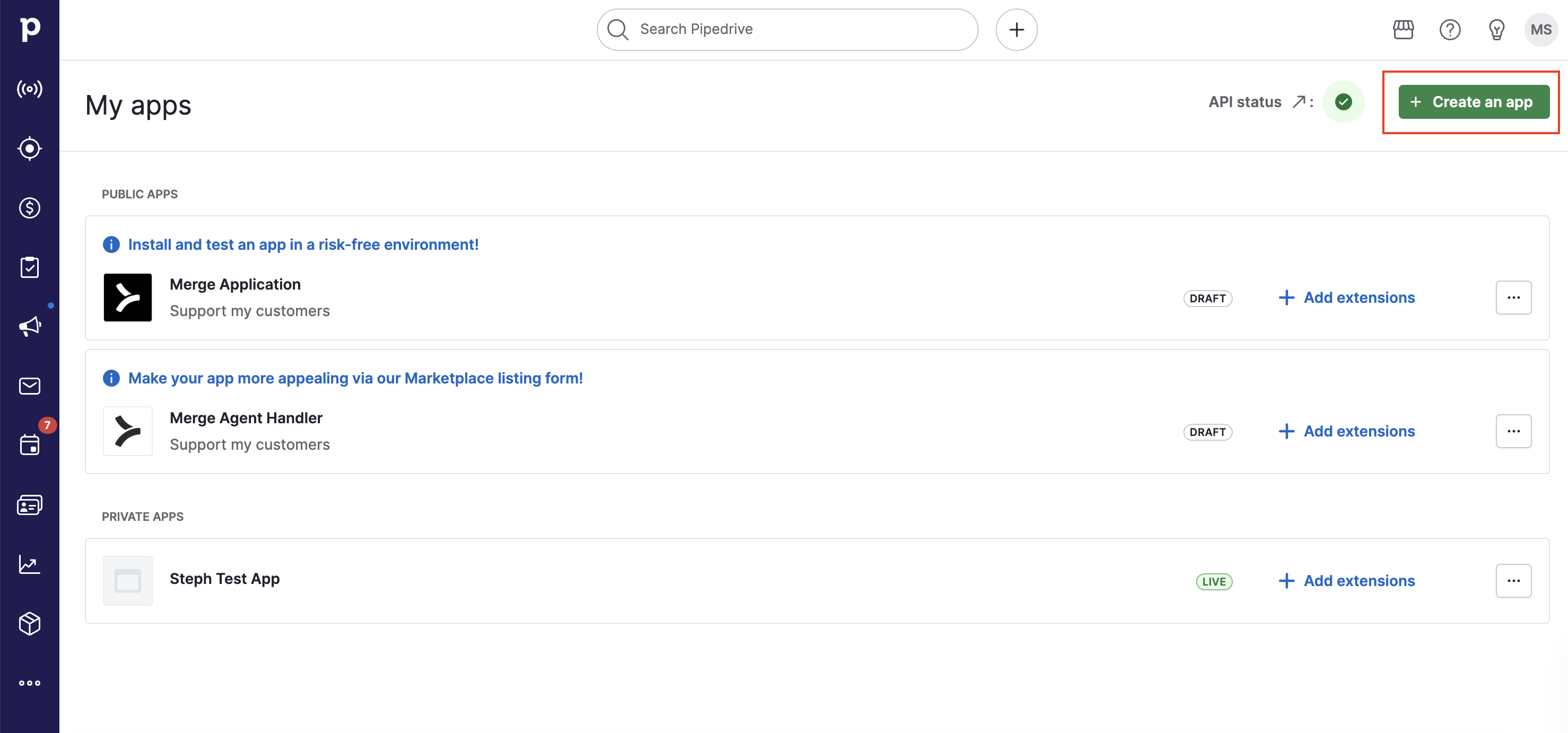
Select Create an app in the app management page to begin the app creation flow.
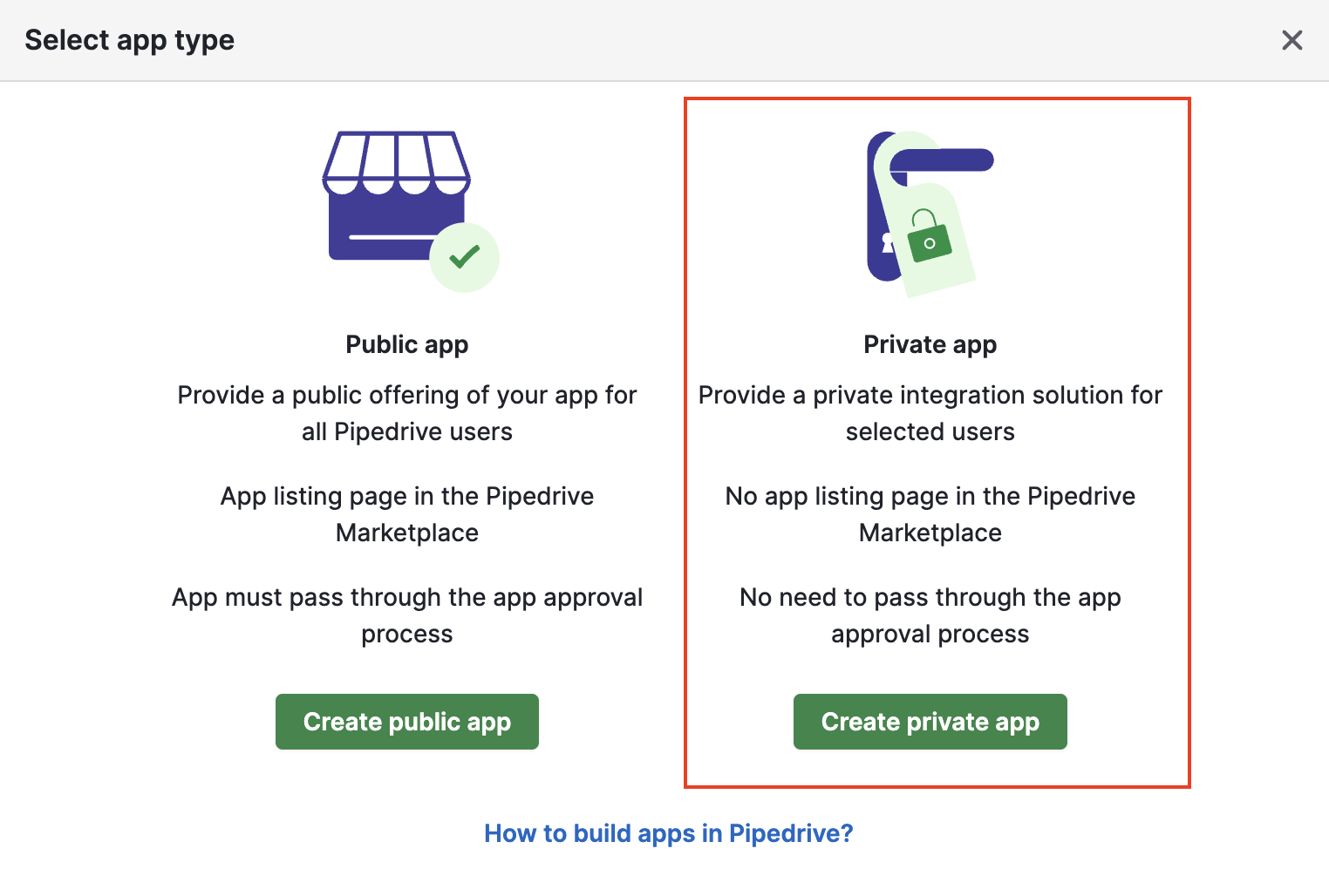
Click Create private app.
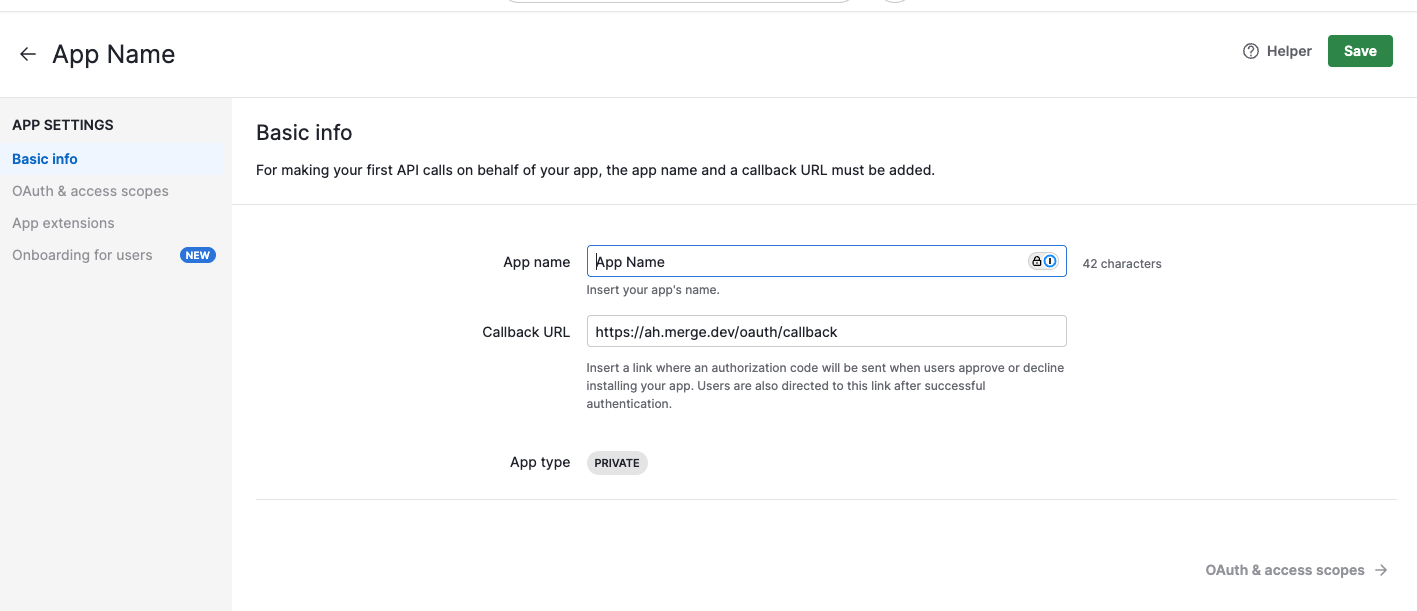
Enter a name for the App and input the Callback URL as
https://ah.merge.dev/oauth/callback.
Step 2: Enable OAuth settings
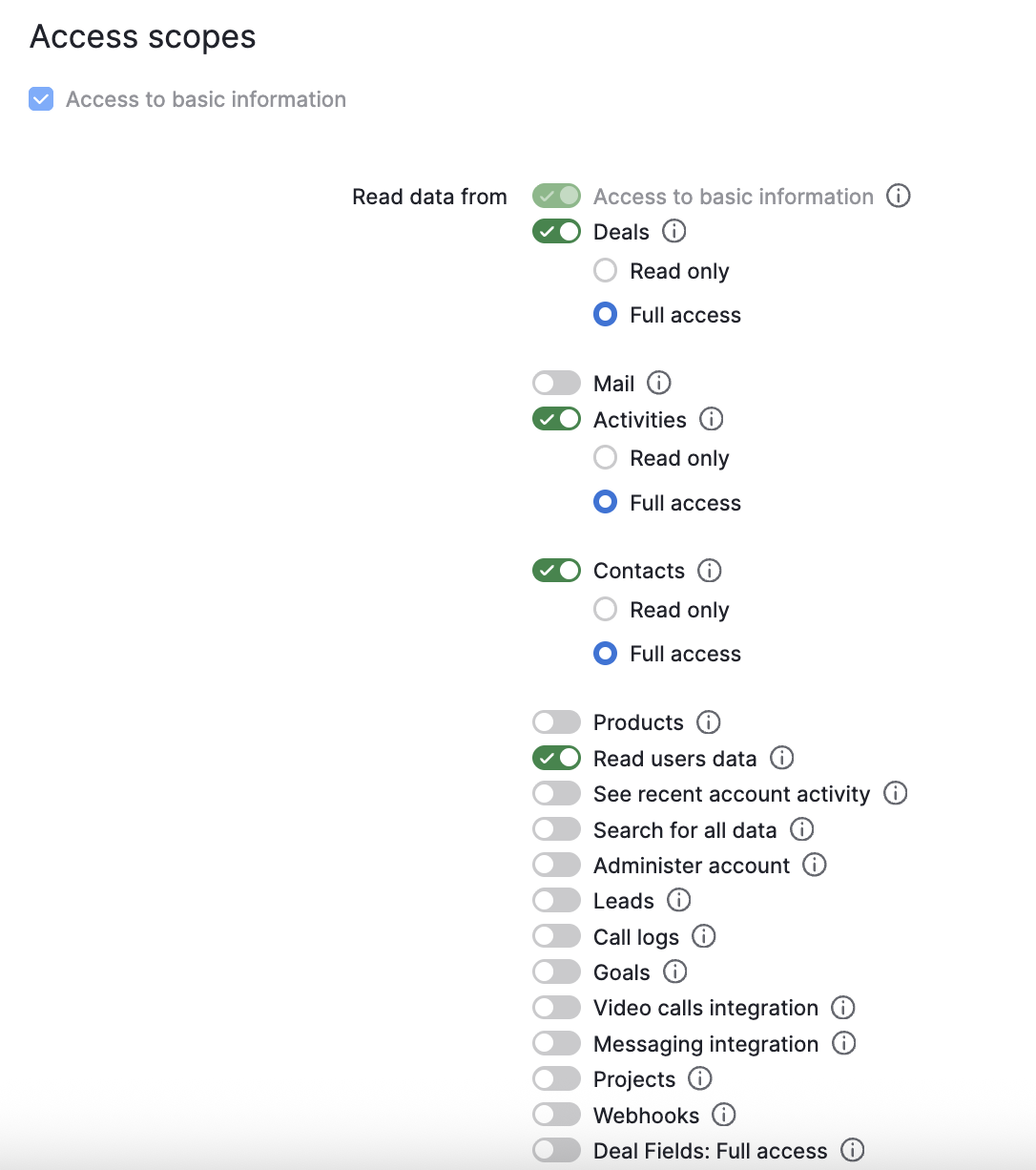
In the Access scopes area of the page, select the following scopes:
Complete the following fields:
Select the Deals toggle and select Full access
Select the Activities toggle and select Full access
Select the Contacts toggle and select Full access
Select the Read users data toggle
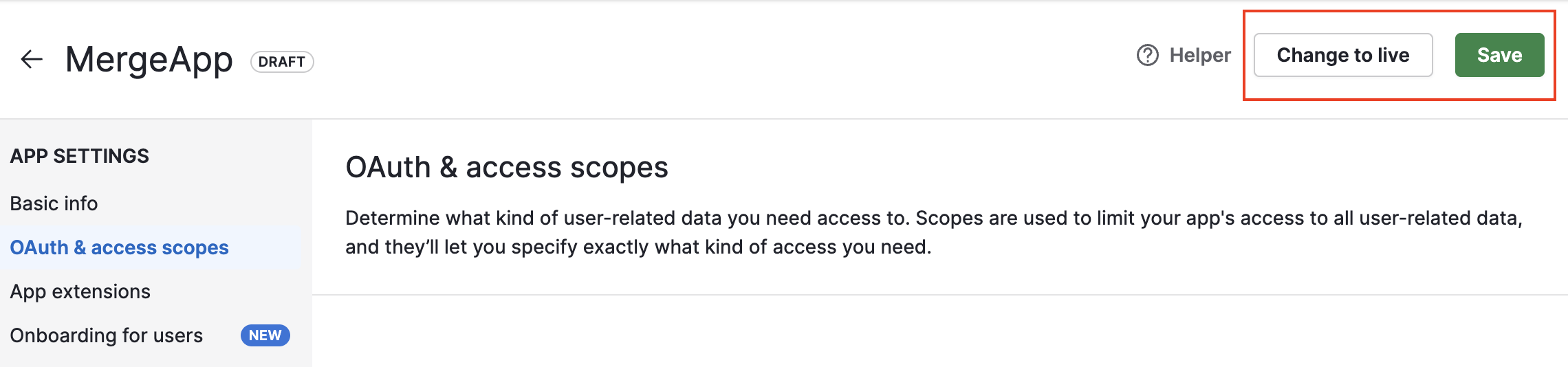
Save the app and select the Change to live button to publish the app.
In the Client ID section, copy the following values and enter them in the Merge Dashboard.

OAuth Client ID
OAuth Client Secret