Slack - How do I set up my partner credentials for OAuth?
Last updated: January 29, 2026
Overview
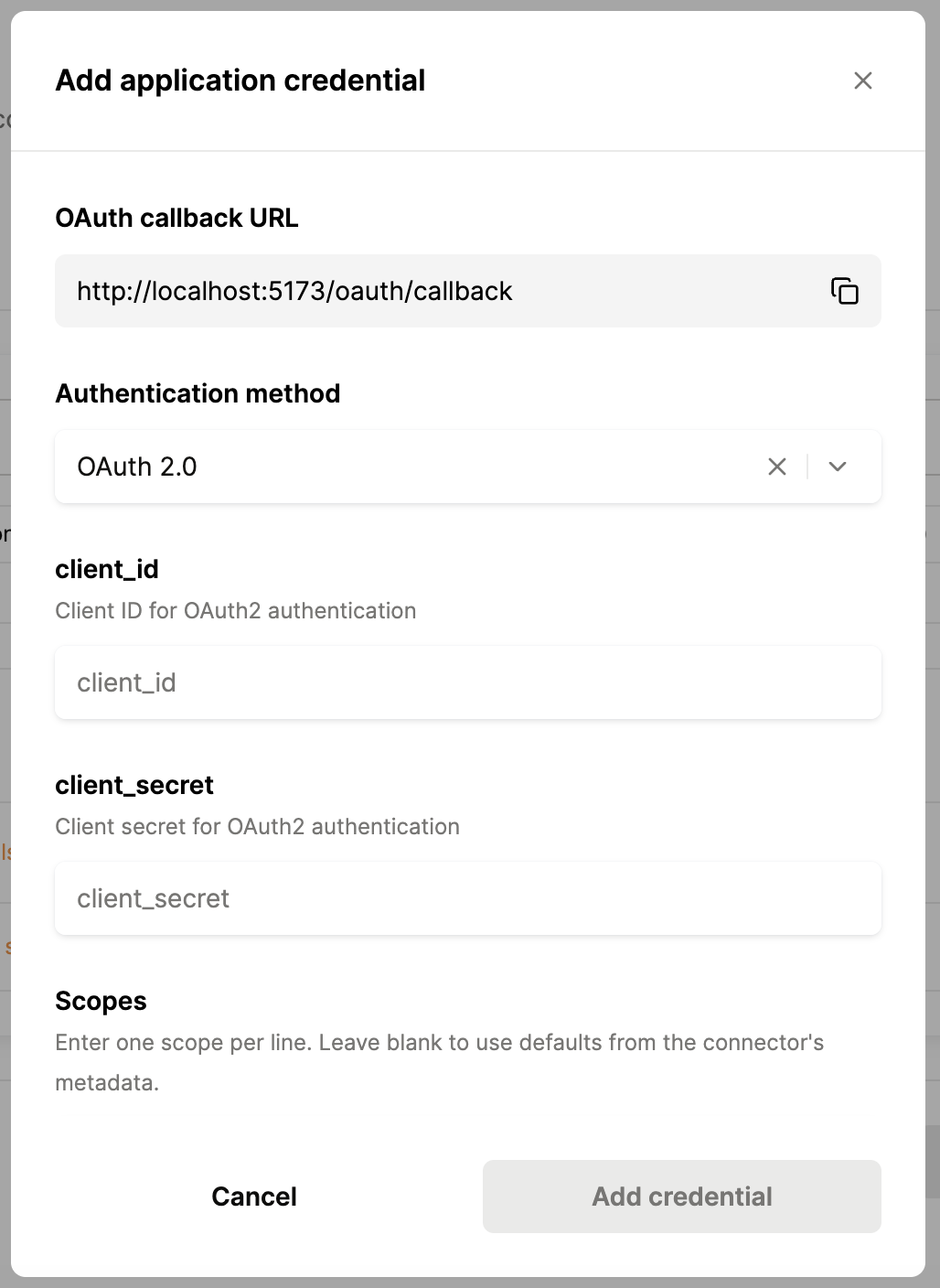
This guide will walk you through the steps generate your client credentials within Slack and input them into the Merge Dashboard. Please note that generating your own client credentials is required for the Slack connector to work.
Instructions
Step 1: Create a Slack app
Navigate to the Slack apps page.
Hit "Create App".
Select the "From scratch" option.
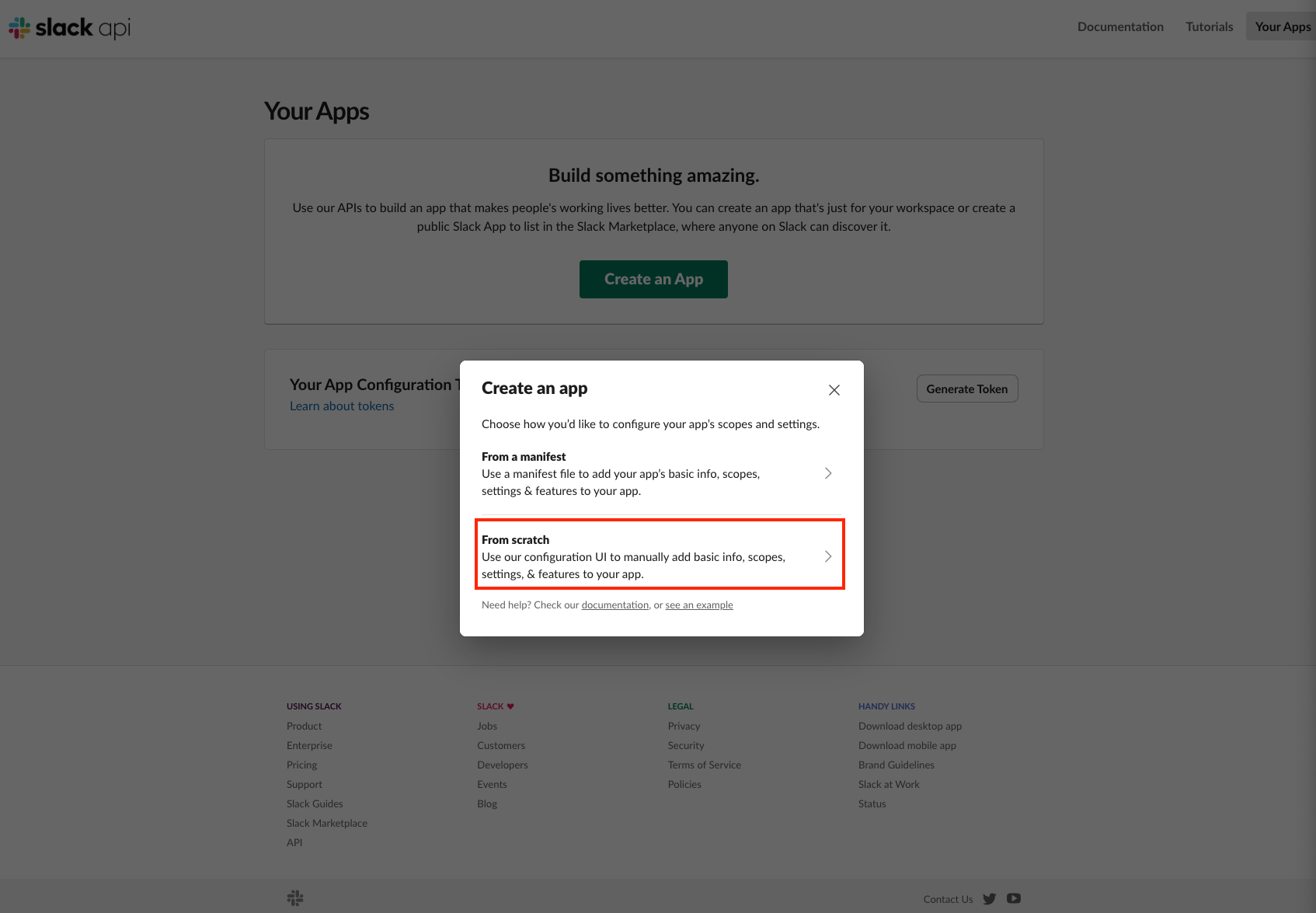
Give your app a name, such as "YOUR ORG Slack Agentic".
You can change this name later if required.
Pick the Slack workspace that you will develop your app in.
If you use Slack internally at your organization, you should consider creating a separate Slack workspace specifically to host the OAuth app.
Copy the Client ID and Client Secret from the App Credentials page. You will add these to the connector configuration in Agent Handler in a later step.
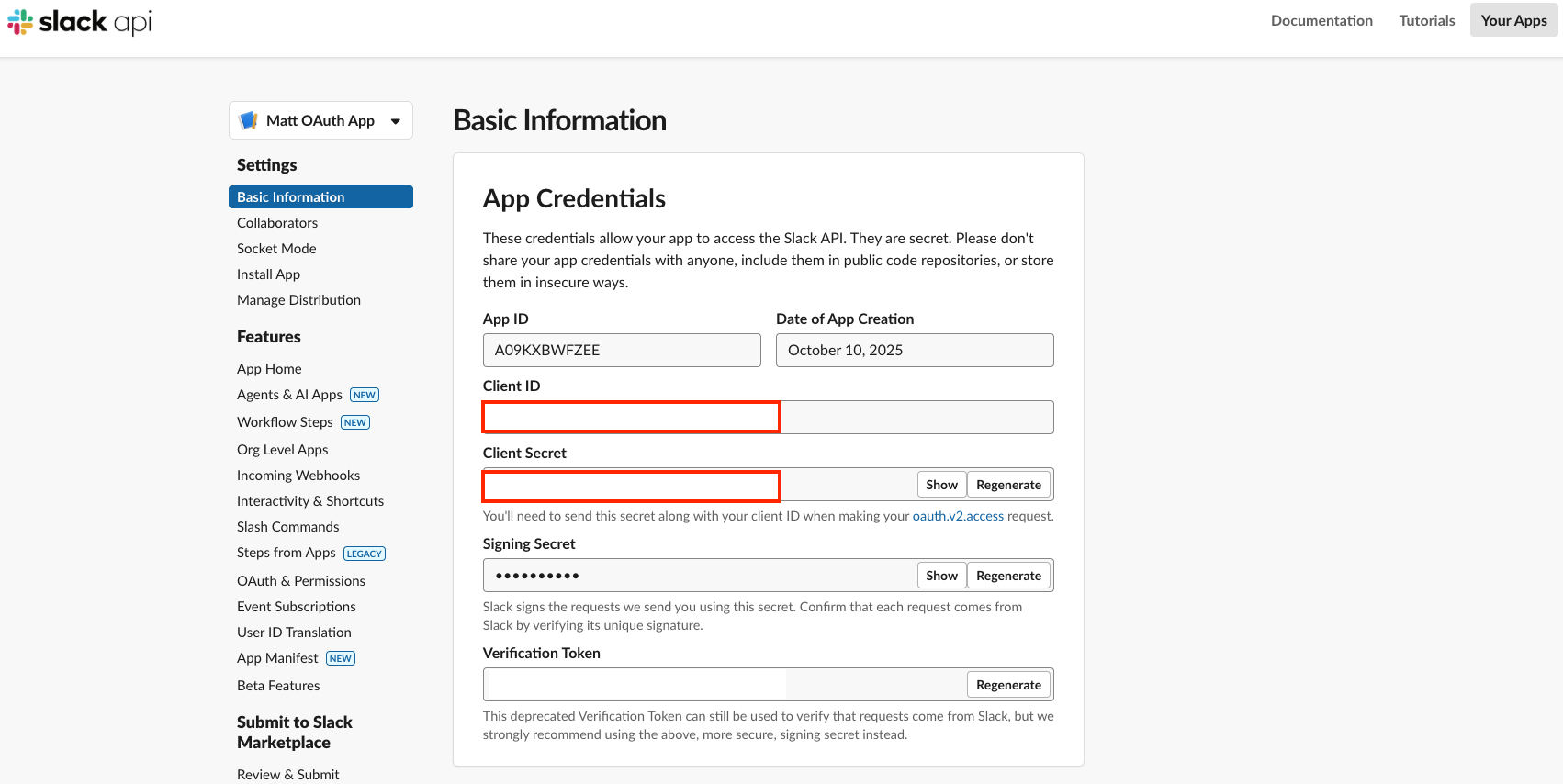
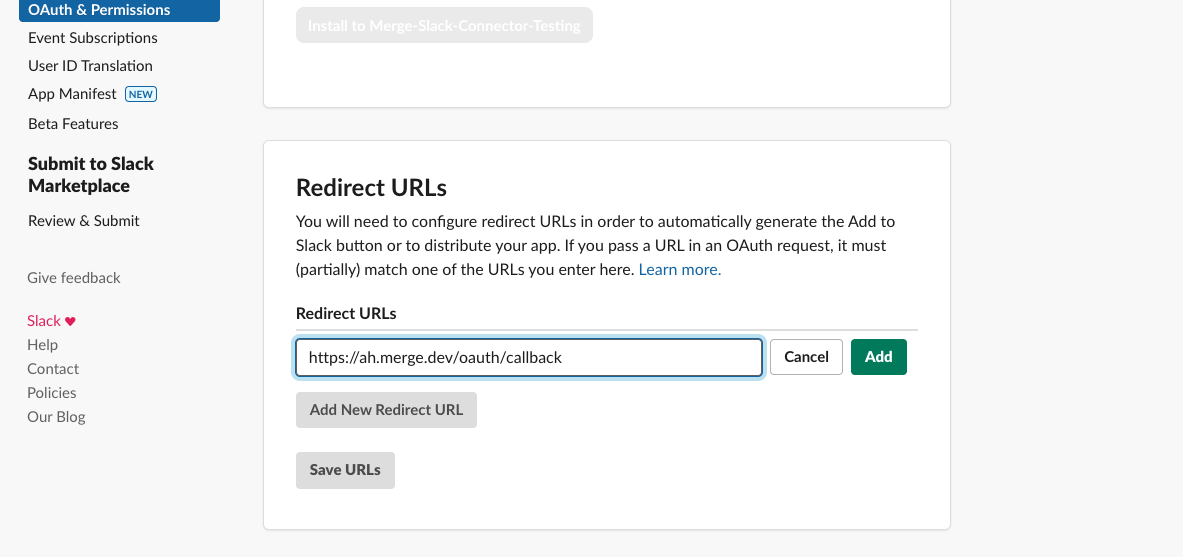
Navigate to the "OAuth & Permissions" page
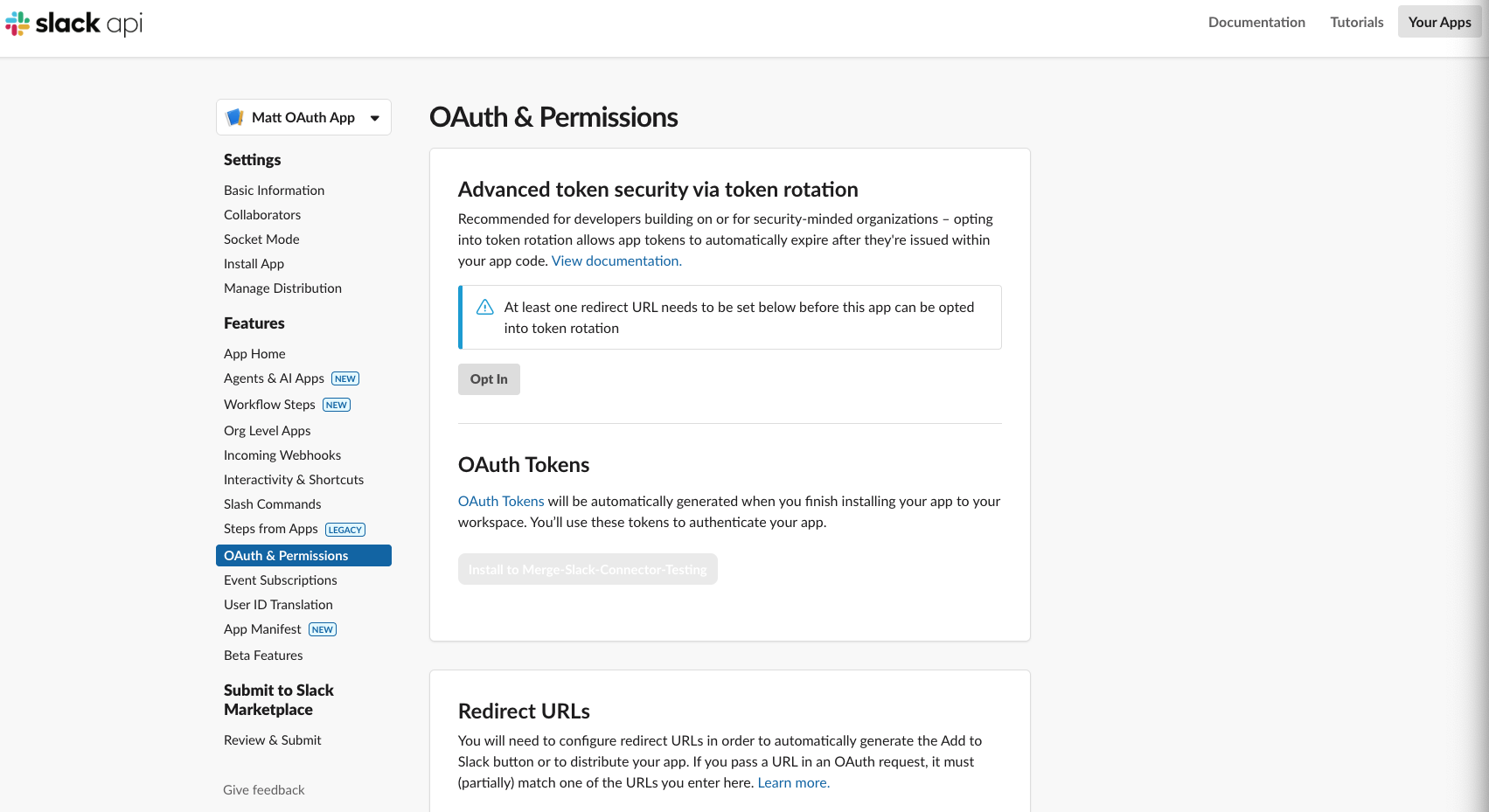
In the "Redirect URLs" section, hit "Add New Redirect URL". Add "https://ah.merge.dev/oauth/callback" as the callback url.
Navigate to the Scopes section. Agent Handler uses a combination of user and bot scopes across our Slack tools. Configure the following scopes in their respective section
Bot scopes
Tool | Required OAuth scope |
create_channels, archive_channel, unarchive_channel, invite_to_channel, kick_from_channel, rename_channel | channels:manage |
list_unread_channel_messages, get_users_conversations | channels:read |
post_message, update_message, delete_message, schedule_message, delete_scheduled_message | chat:write |
get_user_info, list_users, lookup_user_by_email, get_user_presence | users:read |
get_conversation_history, get_conversation_replies | channels:history |
b . User scopes
Tool | Required OAuth scope |
get_conversation_history, get_conversation_replies | channels:history |
list_unread_channel_messages, get_users_conversations | channels:read |
post_message, update_message, delete_message, schedule_message, delete_scheduled_message | chat:write |
get_file_info, list_files, get_file_content | files:read |
share_file, delete_file, make_file_public, revoke_file_public_url | files:write |
get_conversation_history, get_conversation_replies, get_unread_messages_from_channel | groups:history |
get_users_conversations, list_channels, get_channel_info, get_channel_members, get_message_permalink, list_unread_channel_messages, get_users_conversations | groups:read |
create_channel, join_channel, leave_channel, archive_channel, unarchive_channel, invite_to_channel, kick_from_channel, rename_channel, set_channel_topic, set_channel_purpose | groups:write |
get_conversation_history, get_conversation_replies, get_unread_messages_from_user | im:history |
get_users_conversations, list_unread_direct_messages, get_message_permalink, get_channel_members, get_channel_info, list_channels | im:read |
post_message | im:write |
get_conversation_replies, get_conversation_history | mpim:history |
get_message_permalink, list_unread_direct_messages, list_channels, get_channel_info, get_channel_members | mpim:read |
list_pinned_messages | pins:read |
pin_message, unpin_message | pins:write |
add_reaction, remove_reaction | reactions:write |
get_user_info, list_users, lookup_user_by_email, get_user_presence | users:read |
set_user_presence | users:write |
set_user_profile, set_user_status, clear_user_status | users.profile:write |
lookup_user_by_email | users:read.email |
get_user_profile | users.profile:read |
search_messages, search_files | search:read |
create_channel, set_channel_topic, set_channel_purpose | channels:write |
set_channel_topic, set_channel_purpose | channels:write.topic |
Step 2: Enter credentials in Merge
In the Connectors page, enter your OAuth credentials for Slack, and clicking the "+ Add connector" button