Google Suite - How do I set up my partner credentials for OAuth?
Last updated: October 15, 2026
Overview
This guide will walk you through the steps to generate your client credentials within Google Workspace and input them into Merge. Note that partnership is required for Google Suite connectors to work.
This guide goes over setting up partner credentials for Google Drive, Gmail, Google Calendar, Google Meet, Google Tasks, and Google Ads. Specific instructions for each connector will be found below.
Step 1: Generate OAuth credentials in Google
Create a Google Cloud Project here.
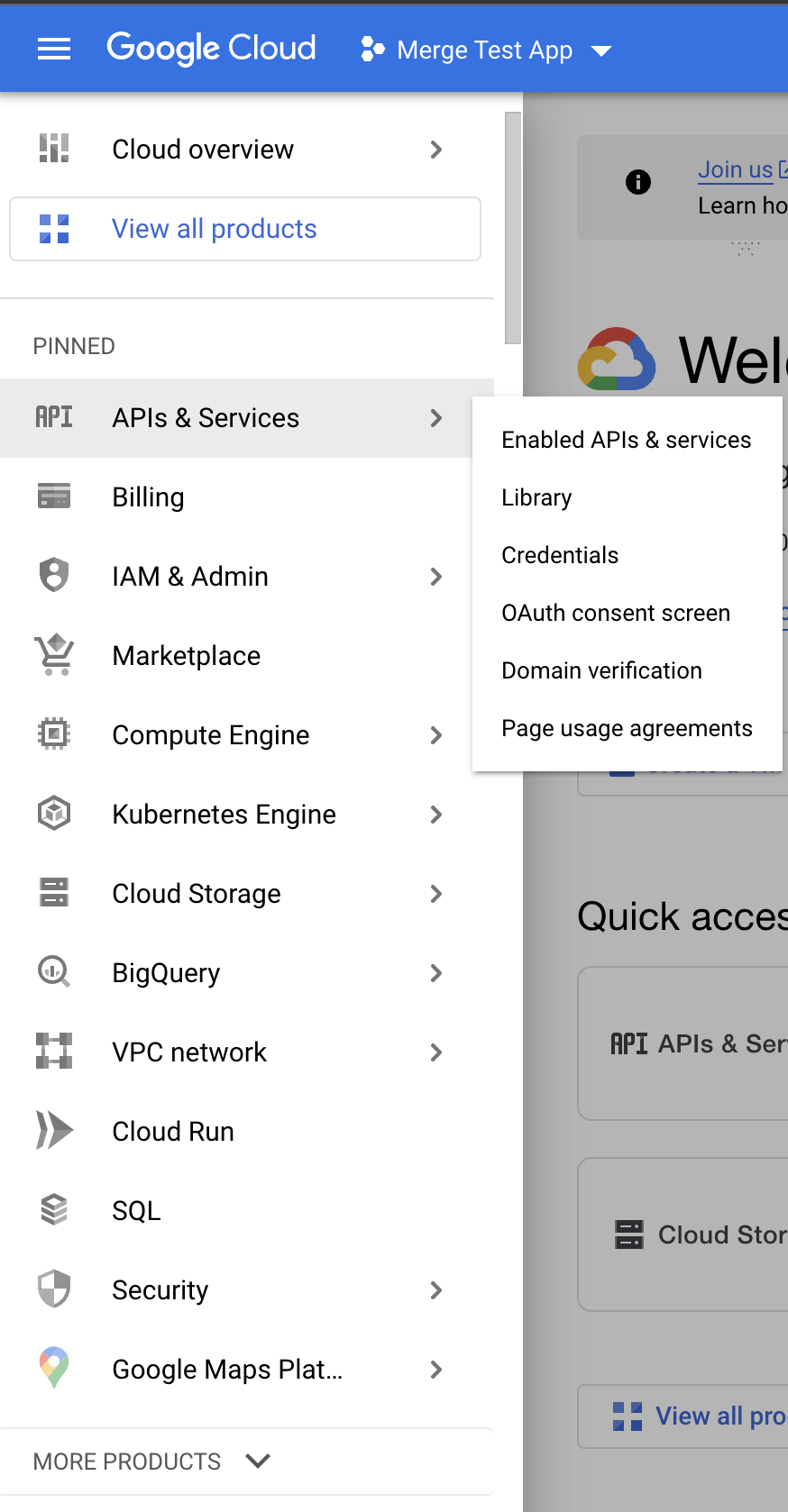
In your Dashboard, go to APIs & Services, and click on Credentials.
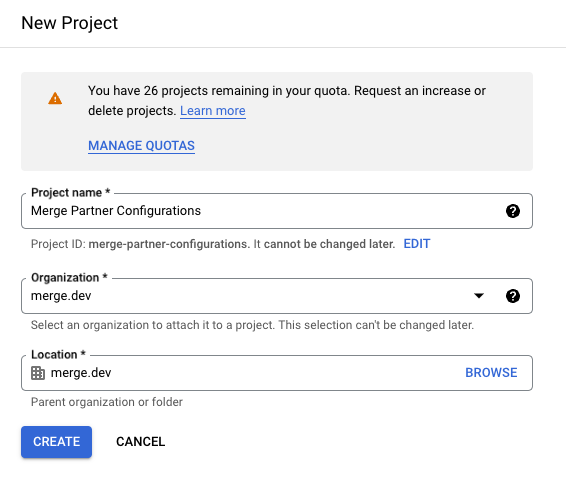
Create a Project for the partnership configuration.
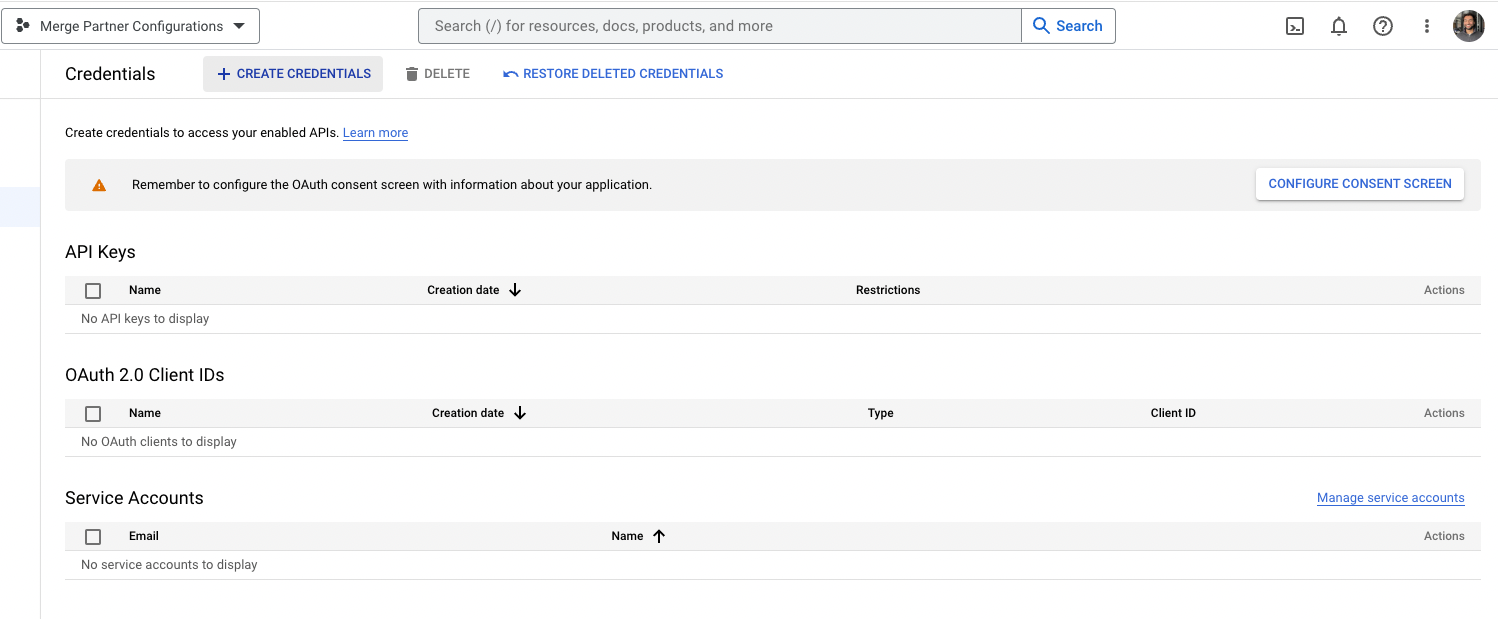
Configure your OAuth Consent Screen with User Type: External and Published.
Click +Create Credentials and begin steps to create an OAuth Client ID.
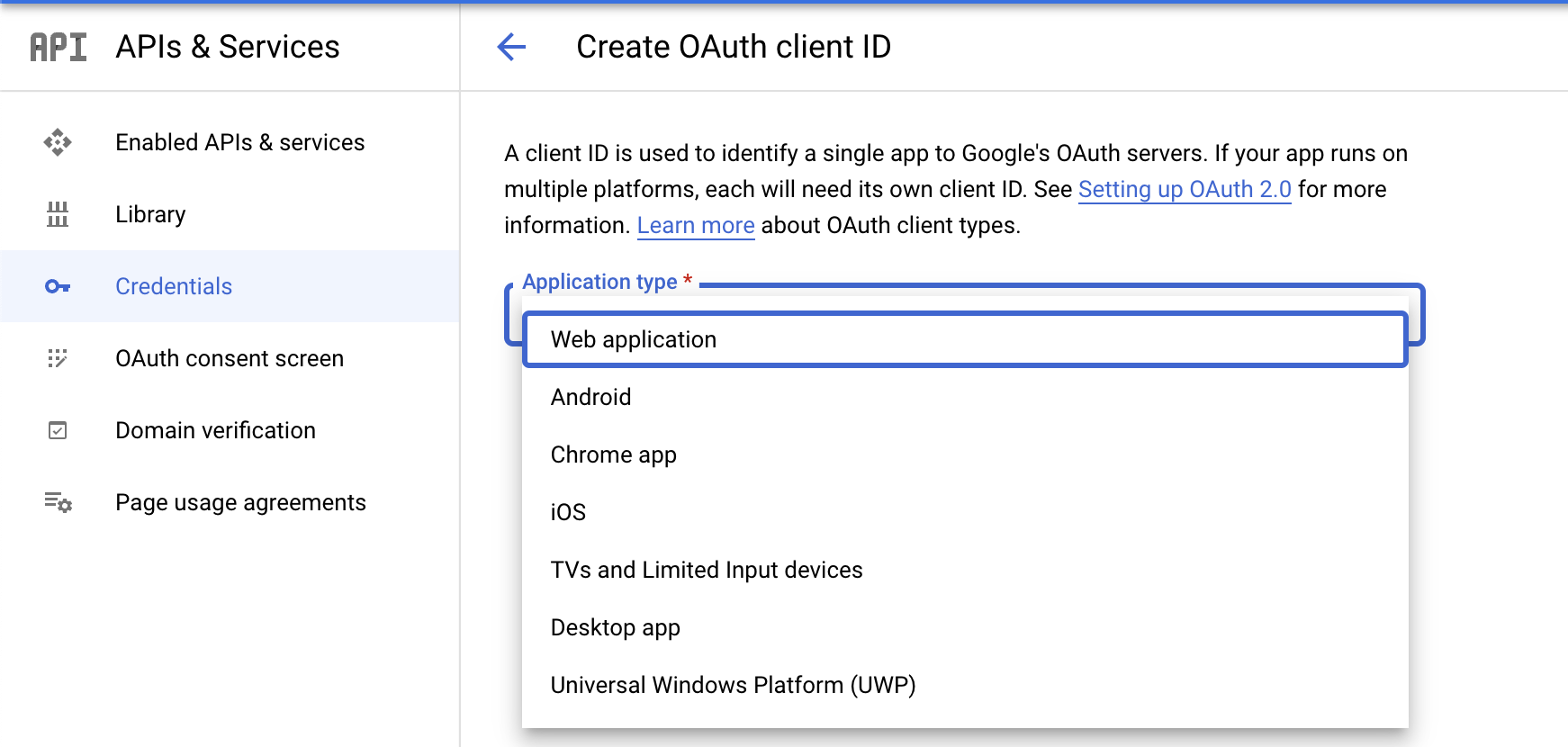
Mark the Application type as Web Application.
Add the Merge Redirect URI as
https://ah.merge.dev/oauth/callback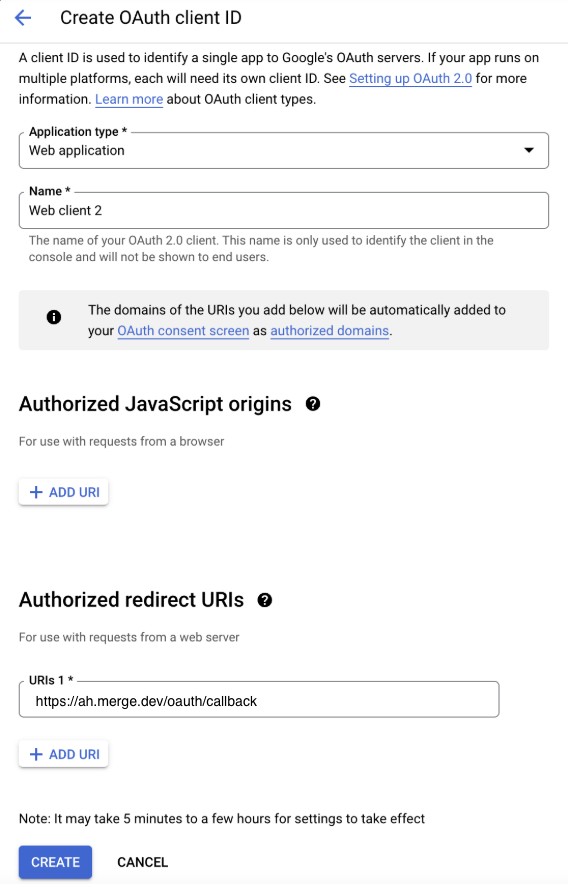
Click CREATE. You will see a screen that shows the OAuth Client ID and Secret for your account.
Step 2a: Google Drive
If you want to build an OAuth app for the Google Drive connector, follow these steps.
Under Data Access, you'll need to add scopes. Please include the following scopes based upon the authentication method your end users will select in Merge Link:
User account (read-only)
https://www.googleapis.com/auth/drive.readonly
Admin account (read-only)
https://www.googleapis.com/auth/drive.readonlyhttps://www.googleapis.com/auth/admin.directory.group.readonly
Admin account (read and write)
https://www.googleapis.com/auth/drivehttps://www.googleapis.com/auth/admin.directory.group.readonly
Once the scopes are set, fill out any other required questions about your product and submit your application.
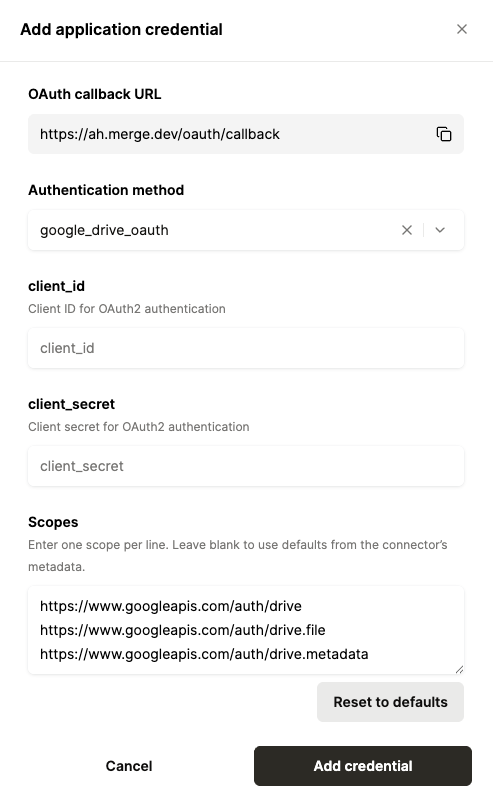
Save your Google Drive OAuth credentials in Agent Handler via the Connectors page, by hitting the "+ Add credential" button
Step 2b: Gmail
If you want to build an OAuth app for the Google Gmail connector, follow these steps.
Under data access, you'll need to add scopes. The exact scopes that need to be added will depend on the tools you plan to offer via Agent Handler. A breakdown of each tool call and the required Google scope can be found in the table below.
If you want to easily enable all tool calls, the https://mail.google.com/
scope grants full read and write privileges in a single scope
Tool | Required OAuth Scope(s) |
get_attachment | Minimal: |
list_drafts | Minimal: |
get_draft | Minimal: |
create_draft | Minimal: |
update_draft | Minimal: |
delete_draft | Minimal: |
send_draft | Minimal: |
list_labels | Minimal: |
get_label | Minimal: |
create_label | Minimal: |
update_label | Minimal: |
delete_label | Minimal: |
list_messages | Minimal: |
get_message | Minimal: |
send_message | Minimal: |
modify_message_labels | Minimal: |
delete_message | Full Access Only: |
batch_delete_messages | Full Access Only: |
batch_modify_messages | Minimal: |
list_threads | Minimal: |
get_thread | Minimal: |
modify_thread_labels | Minimal: |
delete_thread | Full Access Only: |
Step 2c: Google Calendar
If you want to build an OAuth app for the Google Calendar connector, follow these steps.
Under data access, you'll need to add scopes. The exact scopes that need to be added will depend on the tools you plan to offer via Agent Handler. A breakdown of each tool call and the required Google scope can be found in the table below.
If you want to easily enable all tool calls, the https://www.googleapis.com/auth/calendar scope grants full read and write privileges in a single scope
Tool | Required OAuth Scope(s) |
list_acl_rules |
|
get_acl_rule |
|
create_acl_rule |
|
update_acl_rule |
|
patch_acl_rule |
|
delete_acl_rule |
|
watch_acl_rules |
|
get_calendar |
|
create_calendar |
|
update_calendar |
|
delete_calendar |
|
clear_calendar |
|
list_calendar_list |
|
get_calendar_from_list |
|
add_calendar_to_list |
|
update_calendar_in_list |
|
patch_calendar_in_list |
|
remove_calendar_from_list |
|
watch_calendar_list |
|
list_events |
|
get_event |
|
create_event |
|
update_event |
|
patch_event |
|
delete_event |
|
move_event |
|
import_event |
|
quick_add_event |
|
watch_events |
|
get_event_instances |
|
list_user_settings |
|
get_user_setting |
|
query_freebusy |
|
watch_user_settings |
|
Step 2d: Google Meet
If you want to build an OAuth app for the Google Meet connector, follow these steps.
Under data access, you'll need to add scopes. The exact scopes that need to be added will depend on the tools you plan to offer via Agent Handler. A breakdown of each tool call and the required Google scope can be found in the table below.
If you want to easily enable all tool calls, the https://www.googleapis.com/auth/meetings.space.created scope grants full read and write privileges in a single scope
Tool | Required OAuth Scope(s) |
create_space |
|
get_space |
|
update_space |
|
end_active_conference |
|
list_conference_records |
|
get_conference_record |
|
list_participants |
|
get_participant |
|
list_participant_sessions |
|
get_participant_session |
|
list_recordings |
|
get_recording |
|
list_transcripts |
|
get_transcript |
|
list_transcript_entries |
|
get_transcript_entry |
|
validate_credential |
|
Step 2e: Google Tasks
If you want to build an OAuth app for the Google Tasks connector, follow these steps.
Under data access, you'll need to add scopes. The exact scopes that need to be added will depend on the tools you plan to offer via Agent Handler. A breakdown of each tool call and the required Google scope can be found in the table below.
If you want to easily enable all tool calls, the https://www.googleapis.com/auth/tasks scope grants full read and write privileges in a single scope
Tool | Required OAuth Scope(s) |
list_tasks |
|
get_task |
|
create_task |
|
update_task |
|
delete_task |
|
move_task |
|
clear_completed_tasks |
|
list_tasklists |
|
get_tasklist |
|
create_tasklist |
|
update_tasklist |
|
delete_tasklist |
|
validate_credential |
|
Step 2f: Google Ads
If you want to build an OAuth app for the Google Ads connector, complete Step 1 first, then follow these steps.
In APIs & Services, search for and enable the Google Ads API and the Data Manager API in the same project as your OAuth client.
Under data access, you'll need to add scopes. The scopes that need to be added are listed in the table below.
Apply for Google Ads API access if needed. API access levels belong to the Google Cloud project that owns your OAuth client, so open the Google Ads API overview page for that project and confirm the access level is Explorer or higher. A new project starts at Test, which can only reach test accounts. If your project is at Test, apply for higher access from that page.
To enable all tool calls, add both scopes below. If you will not use the audience member tools, the https://www.googleapis.com/auth/adwords scope alone covers every other tool
Required OAuth scope | Tools |
| All tools except those listed in the next row |
| upload_user_list_members, remove_user_list_members, remove_all_user_list_members, get_user_list_upload_status |
Troubleshooting Blocked Access
If you run into an issue at Google sign-in for "Access blocked" for an individual user, run through the following steps using administrator access to the Google Workspace environment:
Log in to the Google Admin Console using an admin account.
Go to Security > Access and data control > API controls.
Inside the App access control section, click Manage Third-Party App Access.
Click Add app and select OAuth App Name Or Client ID from the dropdown menu using the same client configured in Merge.
Check the box next to the correct client ID/app version and click select.
Choose the organizational units that need access (or select "All users") and click continue.
Select Trusted (which gives full access to requested scopes) and click Finish.